

PinkDocs includes Write With AI, a guided AI assistant that helps you create complete documentation directly inside the WordPress editor.
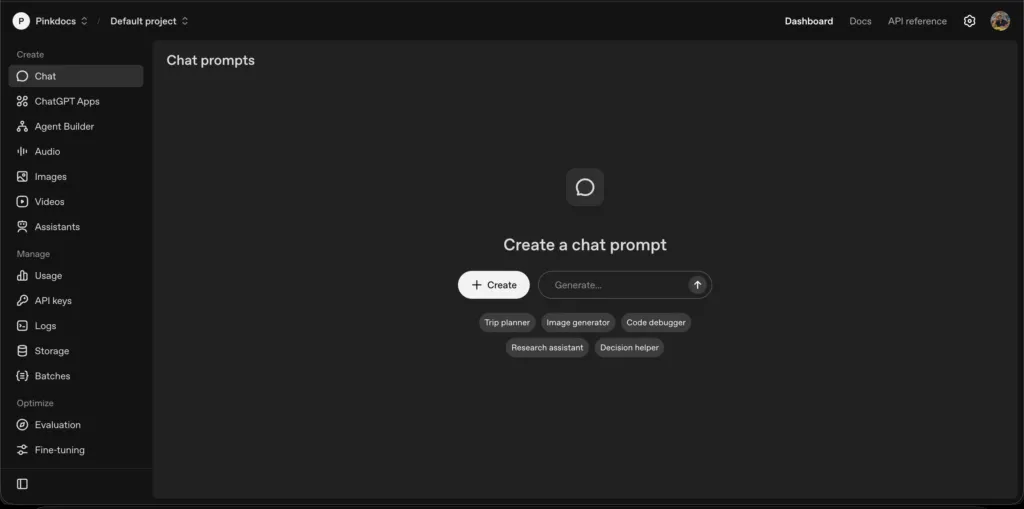
– How to add Open AI key
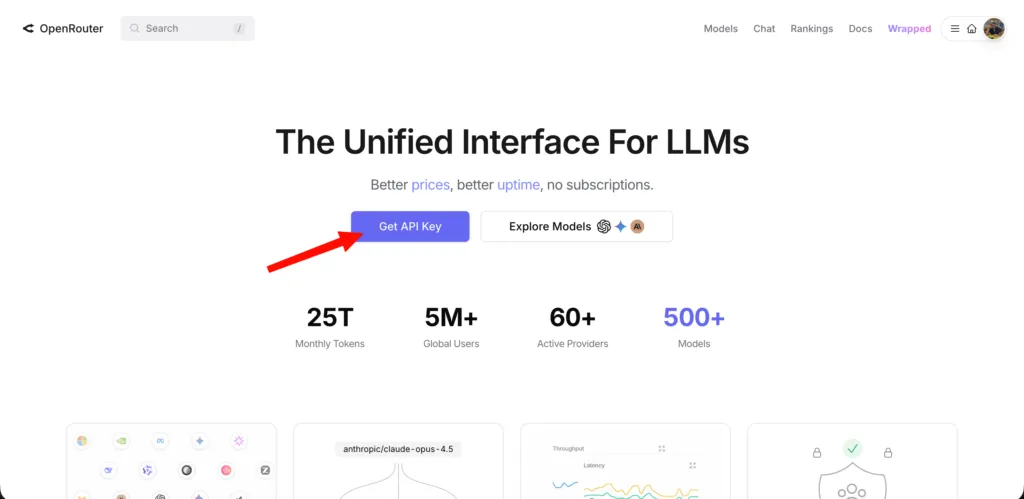
– How to add OpenRouter AI key
How to Enable Write With AI
Go to –
PinkDocs → Plugin Settings → PinkDocs

- Find the Write With AI option and toggle it ON (as shown in the image).
- This enables AI-powered content generation directly inside the documentation editor.
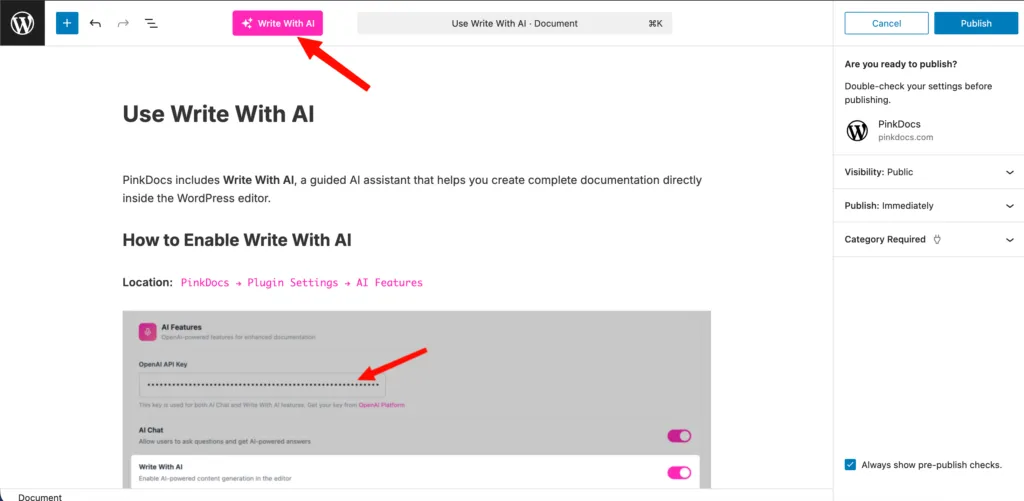
Once enabled, the Write With AI button appears in the WordPress editor toolbar.
How to Use Write With AI
Step 1: Open the AI Writer
- Go to PinkDocs → Documents
- Click Add New Document or open an existing one
- Click the Write With AI button in the editor toolbar
This opens the Write With AI modal.
Write With AI Flow (Step-by-Step)
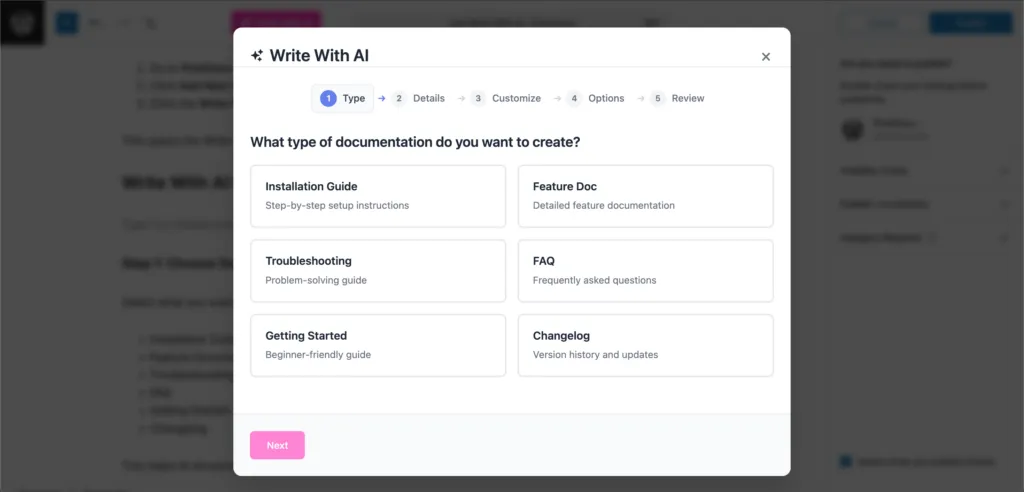
Step 1: Choose Documentation Type
Select what you want to create:
- Installation Guide
- Feature Documentation
- Troubleshooting Guide
- FAQ
- Getting Started
- Changelog
This helps AI structure the content correctly.
Step 2: Add Details
Provide basic inputs such as:
- Product or feature name
- Purpose or goal
- Target audience
More detail = better output.
Step 3: Customize Content
Adjust:
- Tone (simple, professional, technical)
- Level of detail
- Writing style
This ensures the content matches your brand.
Step 4: Options
Choose optional enhancements such as:
- Step-by-step formatting
- Headings and sections
- Best practices or notes
Step 5: Review & Insert
- Preview the generated content
- Make edits if needed
- Insert it directly into the editor as Gutenberg blocks
The content is fully editable after insertion.
Key Benefits
- Works inside the native WordPress editor
- Generates structured documentation automatically
- Saves hours of writing time
- Perfect for onboarding, guides, and changelogs
Important Notes
- Requires a valid OpenAI API key
- AI usage is billed by OpenAI
- Generated content can be edited, rewritten, or expanded anytime
Write With AI turns documentation creation into a fast, guided, and repeatable process—right where you write.
Support Links
Support Links let you define where users are redirected when they want to talk to a human instead of continuing with AI.
Location: PinkDocs → Plugin Settings → AI Features
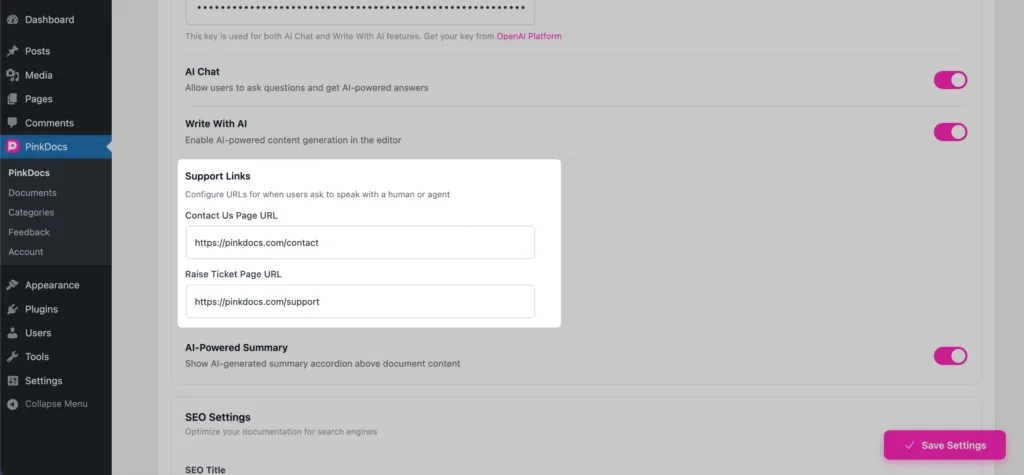
Contact Us Page URL
- Add the URL of your contact page
- Used when users choose to reach your team directly
- Example:
https://yourwebsite.com/contact
Raise Ticket Page URL
- Add the URL of your support or helpdesk page
- Used when users want to submit a support ticket
- Example:
https://yourwebsite.com/support
How Support Links Work
- Appears inside AI Chat (Ask AI) when users request human assistance
- Ensures a smooth handoff from AI to real support
- Works automatically once URLs are saved
- No additional configuration required
Best Practices
- Use a dedicated support or helpdesk page
- Make sure the pages are accessible without login (if possible)
- Clearly explain response times on your support pages
Support Links ensure your AI assistant never becomes a dead end—users can always reach real help when needed.