

PinkDocs allows you to control how your documentation header looks directly from the Header & Footer section inside Plugin Settings.
Navigate to: Plugin Settings → Header & Footer
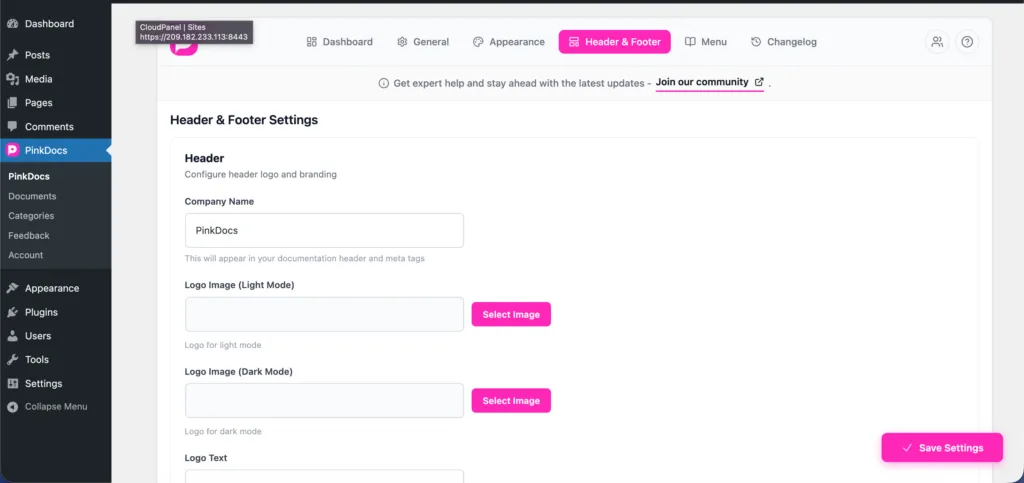
1. Company Name
- Go to Plugin Settings → Header & Footer.
- Enter your Company Name.
- This name appears in the documentation header and is also used in meta tags for SEO.
2. Logo Image (Light Mode)
- Upload a logo under Logo Image (Light Mode).
- This logo is displayed when the site is in light mode.
- Click Select Image to choose a file from the media library.
3. Logo Image (Dark Mode)
- Upload a separate logo under Logo Image (Dark Mode).
- This ensures proper visibility on dark backgrounds.
- If not set, the light mode logo may be used as fallback.
Logo Max Width (Responsive Control)
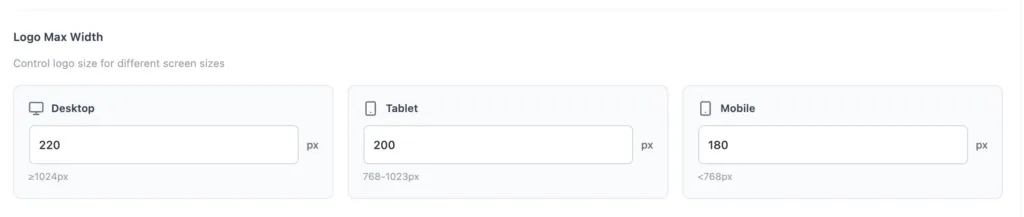
This feature lets you control the maximum width of your logo separately for Desktop, Tablet, and Mobile screens. It ensures your logo looks balanced and readable across all devices without manually adjusting CSS.
How it works:
- Desktop (≥1024px): Set the maximum logo width for large screens (e.g. 220px).
- Tablet (768–1023px): Define a slightly smaller width for tablets (e.g. 200px).
- Mobile (<768px): Optimize the logo size for small screens (e.g. 180px).
Each value is applied automatically based on screen size, keeping the logo responsive and preventing it from appearing too large or too small on different devices.
4. Logo Text (Fallback)
- Add text in the Logo Text field.
- This text is shown when no logo image is uploaded.
- Useful for simple or text-based branding.
5. Logo URL
- Enter a full URL in the Logo URL field (for example,
https://yourwebsite.com). - Clicking the header logo or text will redirect users to this link.
Behavior Summary
- Logo images take priority over logo text.
- Light and dark mode logos switch automatically.
- Logo text appears only if no image is set.
- The logo or text always links to the configured URL.
This setup ensures your PinkDocs documentation header stays branded, accessible, and consistent across light and dark modes.
Was this page helpful?
Great! What worked best for you?
Please
provide
additional details about your experience.
✓ Thank you for your feedback! We appreciate your input.