

The Multi-Language Code block lets you display one code example in multiple programming languages, all inside a single, clean UI with a language switcher.
This is perfect for:
- API documentation
- SDK examples
- Developer guides
- Tutorials that support multiple platforms
Instead of repeating the same example multiple times, PinkDocs keeps everything organized, readable, and interactive.
Demo
<?php
$config = [
    'docs_url' => 'https://pinkdocs.com/docs',
    'language' => 'en',
    'debug'    => true
];

function validateConfig($config) {
    return isset($config['docs_url']) && !empty($config['docs_url']);
}

if (validateConfig($config)) {
    echo "Documentation URL: " . $config['docs_url'] . PHP_EOL;
    echo "Language: " . $config['language'] . PHP_EOL;
} else {
    echo "Invalid documentation configuration";
}
DEMO: This sample code exists purely to showcase PinkDocs’ multi-language code blocks and UI behavior. It is non-functional.
Understanding the Code Block UI
Each block consists of:
- Filename label (top-left, optional)
- Language selector dropdown
- Tabbed languages
- Code editor area
- Copy code button
- Language switcher (frontend)
What the Multi-Language Code Block Does
- Shows one code snippet per language
- Allows readers to switch languages instantly
- Keeps all versions grouped in a single block
- Preserves syntax highlighting for each language
- Supports dozens of programming languages
How To Use The Block
- Open any PinkDocs document
- Click the ➕ Add Block button
- Search for PinkDocs Multi-Language Code
- Insert the block
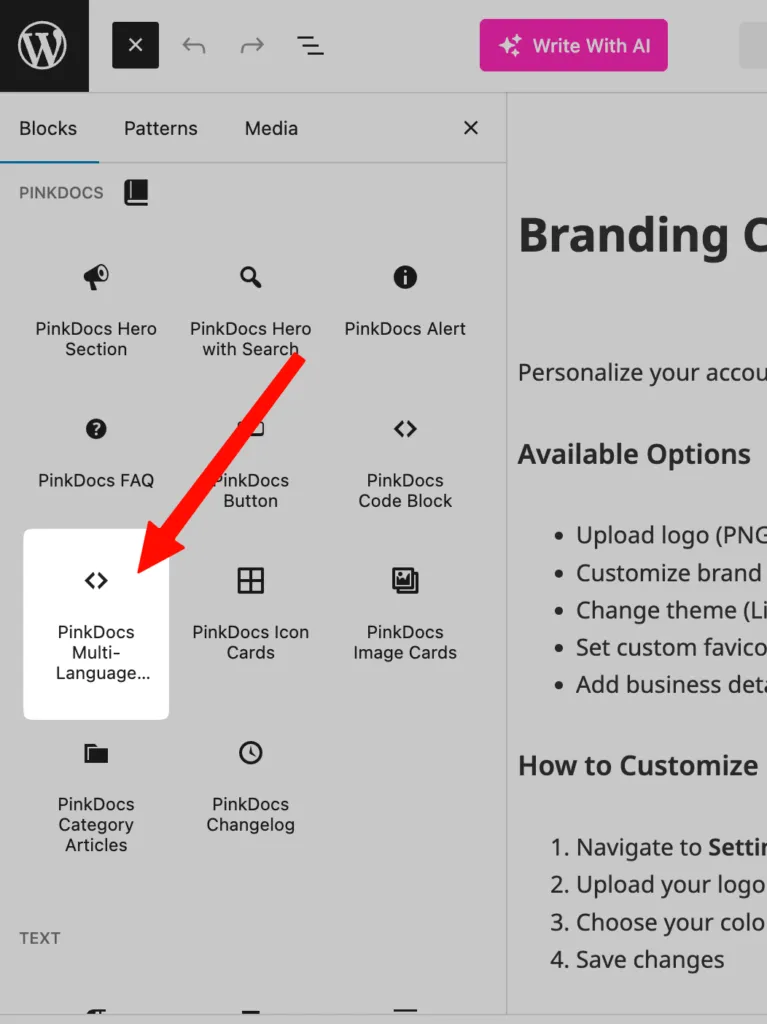
Adding Code in Multiple Languages
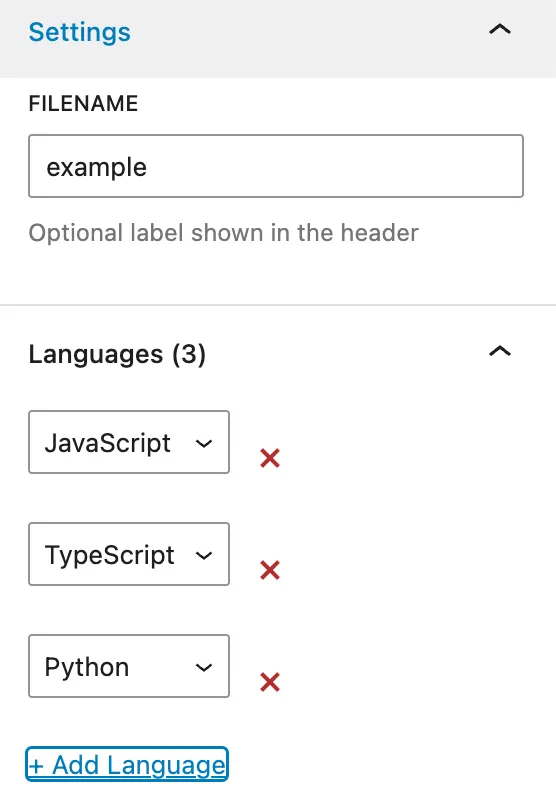
- Set the Filename (Optional)
- Select the languages you want
- Click + Add Language to add more
- Remove any language using the ❌ icon
- Click on a language tab (e.g. Python)
- Paste or type the code for that language
- Switch to another tab (e.g. JavaScript)
- Add the equivalent code
Each language has its own independent editor.
Supported Languages Include:
- JavaScript
- TypeScript
- Python
- PHP
- cURL
- Ruby
- Go
- Java
- C#
- C++
- Swift
- Kotlin
- Rust
- Bash / Shell
- PowerShell
- HTML / CSS
- JSON / YAML
- SQL
- GraphQL
- Plain Text
How It Works on the Frontend
When users view the docs:
- A language dropdown appears at the top
- Switching languages updates the code instantly
- Code formatting stays consistent
- Copy button copies only the active language
This creates a developer-friendly experience similar to modern API docs
Copy Code & Utilities
Each code block includes:
- 📋 Copy button – copies only the selected language
- ✨ Clean formatting – no extra markup
- ⚠️ Error highlighting (if enabled)
This ensures users copy exactly what they need.
What Gets Exported & Imported
When you export PinkDocs documents:
- ✅ All languages in the code block are preserved
- ✅ Syntax highlighting stays intact
- ✅ Content imports exactly as written
No code is lost during migration.
Was this page helpful?
Great! What worked best for you?
Please
provide
additional details about your experience.
✓ Thank you for your feedback! We appreciate your input.