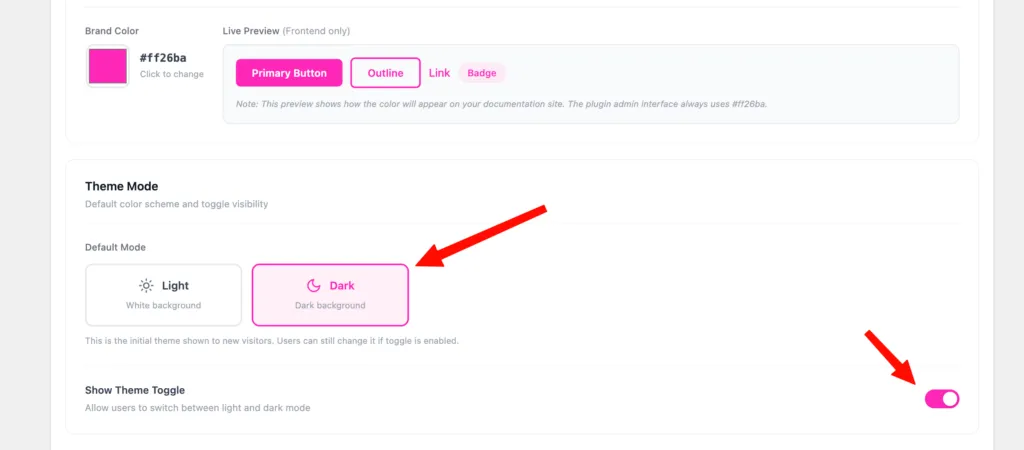


Follow these quick steps to update the brand color used across your PinkDocs documentation frontend.
Step 1: Open PinkDocs Settings
From your WordPress admin dashboard, click PinkDocs in the left sidebar.
Step 2: Go to Appearance
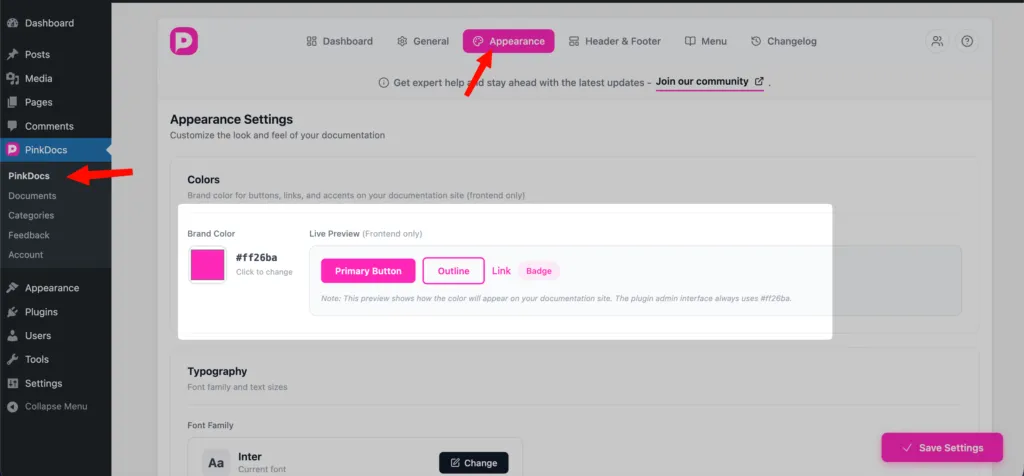
Inside PinkDocs, click on the Appearance tab at the top. This section controls the visual styling of your documentation.
Step 3: Change the Brand Color
Under Colors, you’ll see the Brand Color option.
- Click on the color box
- Choose a new color using the color picker or enter a hex code
- Instantly preview how it looks on buttons, links, outlines, and badges
The live preview shows changes for the frontend documentation only.
Step 4: Save Your Settings
Click Save Settings at the bottom right to apply the new brand color.
What This Affects
The brand color is applied to:
- Primary buttons
- Outline buttons
- Links
- Badges
- Accent elements across your documentation site
The PinkDocs admin interface always uses the default PinkDocs color and is not affected by this setting.
Was this page helpful?
Great! What worked best for you?
Please
provide
additional details about your experience.
✓ Thank you for your feedback! We appreciate your input.