

Installation Guide for Changing the Slug of PinkDocs Documentation
This installation guide provides detailed instructions for developers on how to change the slug of PinkDocs documentation through the plugin settings.
Step-by-Step Installation Instructions
Changing the Slug
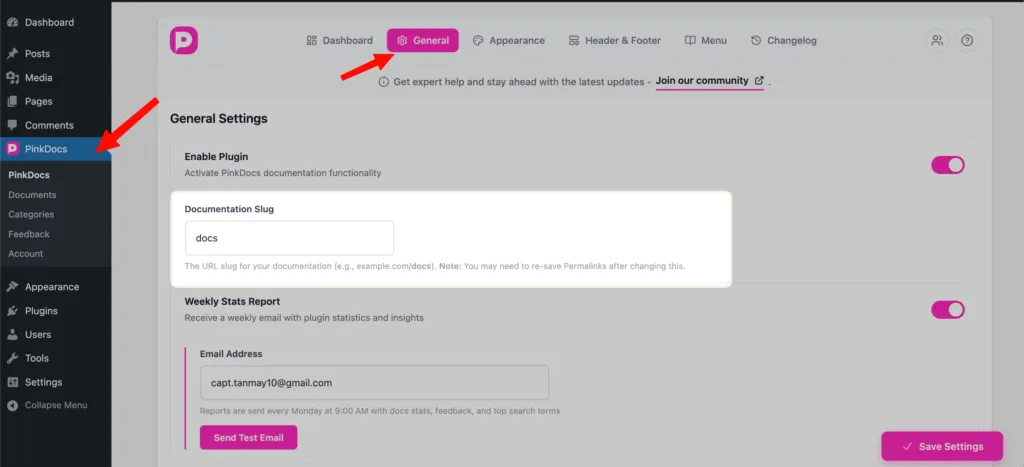
- Under the General tab in the settings, locate the Slug field.
- Enter your desired slug for the documentation in the provided field.
- Click Save Changes to apply your new slug.
Verification Steps
- Visit your PinkDocs documentation page using the new slug.
- Confirm that the documentation loads correctly without any errors.
- Check the URL in the address bar to ensure it reflects the updated slug.
Common Installation Issues and Troubleshooting
1. Plugin Not Found
If you cannot find the PinkDocs plugin in the repository, ensure your WordPress installation is up to date. Check your internet connection as well.
2. Slug Change Not Reflecting
If the slug change does not reflect immediately, try the following steps:
- Clear your browser cache.
- Flush your WordPress permalinks by going to Settings > Permalinks and clicking Save Changes without making any changes.
3. 404 Errors After Slug Change
If you encounter 404 errors after changing the slug:
- Ensure that the new slug does not conflict with existing pages or posts.
- Review your .htaccess file if using Apache, ensuring it is configured correctly.
4. Plugin Compatibility Issues
If the PinkDocs plugin is not functioning correctly, check for compatibility with other plugins or themes. Deactivate other plugins one by one to identify any conflicts.
Conclusion
Following this guide, you should be able to successfully change the slug of your PinkDocs documentation. For further assistance, consult the PinkDocs documentation or reach out to the support team.