

PinkDocs uses native WordPress menus, so you don’t need to create menus separately inside the plugin.
Step 1: Create a WordPress Menu
- Go to WordPress Dashboard → Appearance → Menus
- Click Create a new menu
- Give your menu a name (for example:
PinkDocs Header Menu) - Add pages, custom links, or categories as needed
- Click Save Menu
Step 2: Assign the Menu to PinkDocs
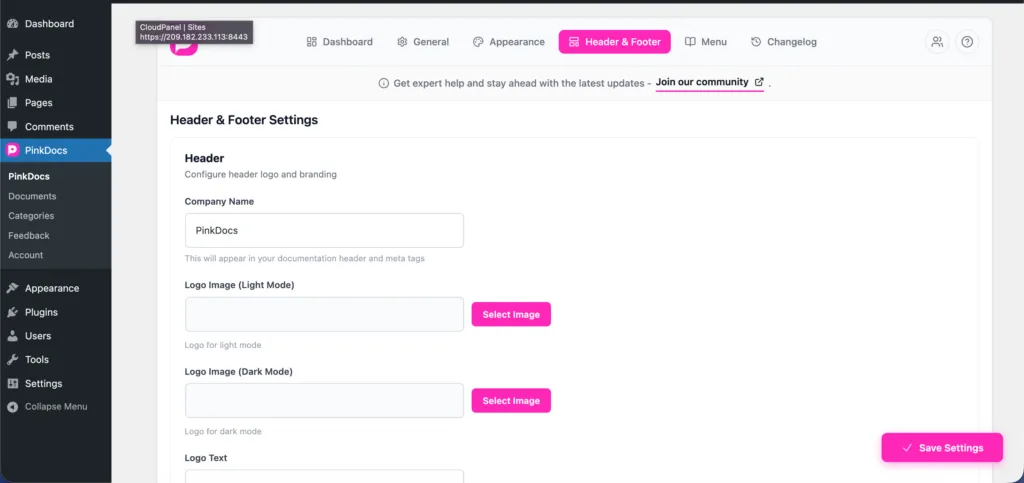
- Go to Plugin Settings → Header & Footer
- Find the Menu or Header Menu option
- Select the WordPress menu you created from the dropdown
- Save your settings
Step 3: View the Menu in Your Documentation
- The selected menu will appear in the documentation header
- Menu links work like standard WordPress navigation links
- Styling automatically matches your PinkDocs design
Important Notes
- PinkDocs does not create its own menu system
- Any menu updates should be done from Appearance → Menus
- You can reuse the same menu across your website and documentation
- Supports pages, custom URLs, anchors, and external links
This approach keeps menu management familiar, flexible, and fully aligned with WordPress standards.
Was this page helpful?
Great! What worked best for you?
Please
provide
additional details about your experience.
✓ Thank you for your feedback! We appreciate your input.