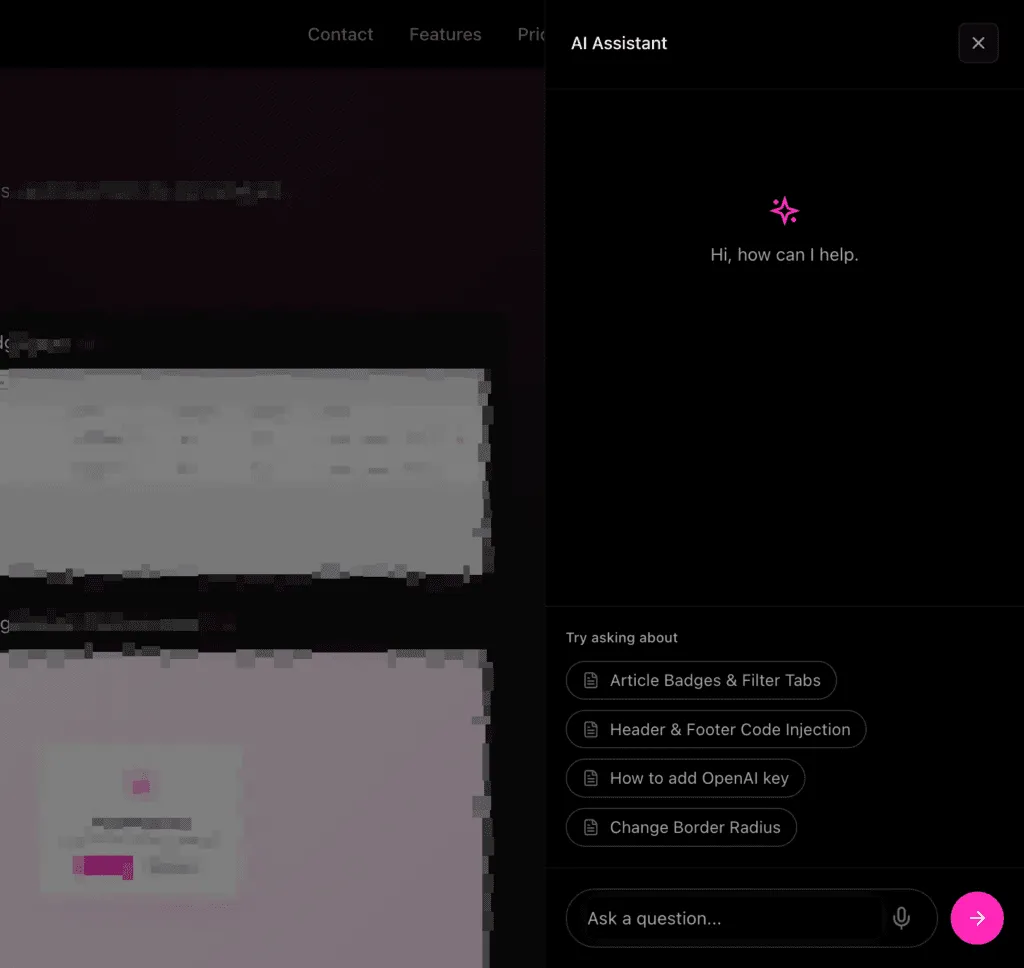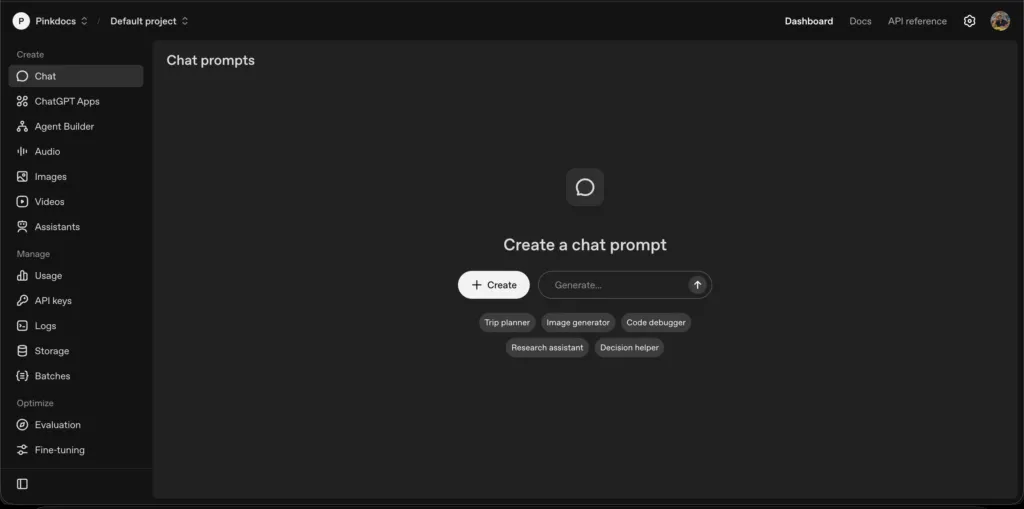


What is OpenRouter?
OpenRouter is an AI gateway that lets you access 100+ AI models using a single API key, including:
- Claude (Anthropic)
- Gemini (Google)
- Llama (Meta)
- Mistral and more
Instead of being locked to one provider, OpenRouter lets you choose different models for different tasks.
How to get your OpenRouter API key
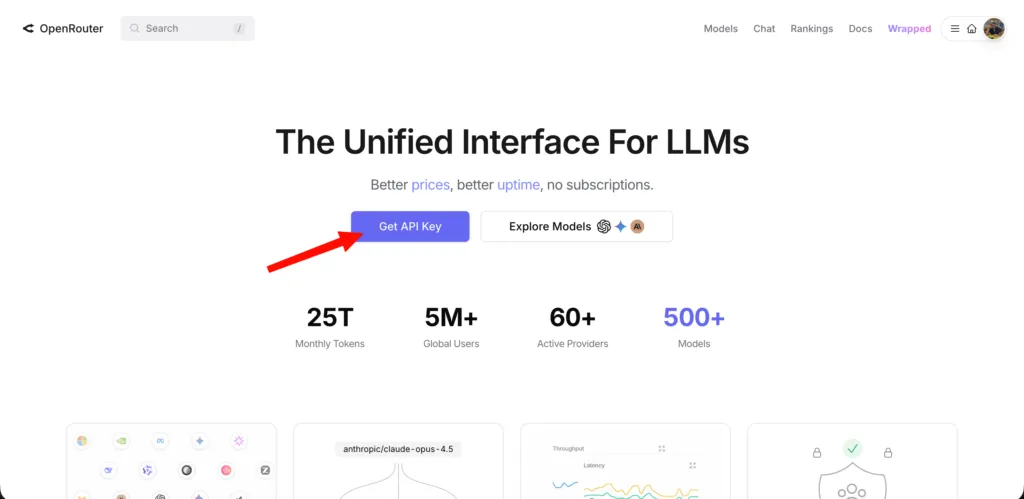
- Go to https://openrouter.ai
- Sign in or create an account
- Open API Keys from the dashboard
- Click Create API Key
- Copy the key
How to add the OpenRouter API key in PinkDocs
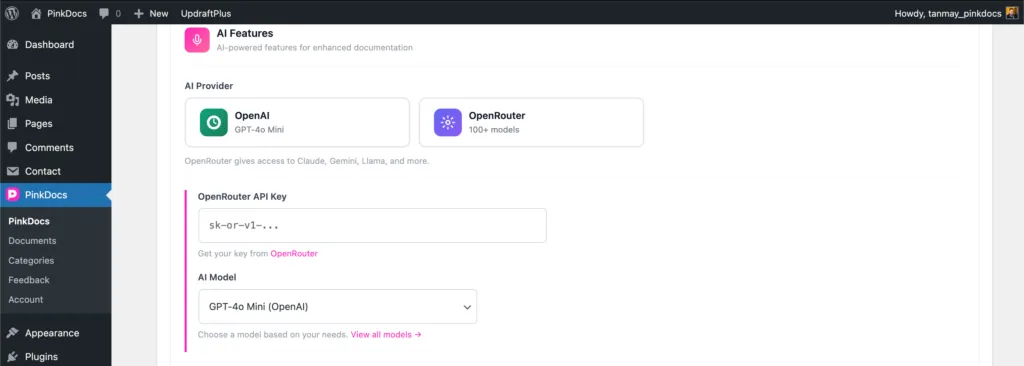
- Go to WordPress Admin → PinkDocs → General
- Scroll to AI Features
- Select OpenRouter as the AI provider
- Paste your key into the OpenRouter API Key field
- Choose an AI model
From the AI Model dropdown, pick what you want to use:
- Fast & affordable
- GPT-4o Mini
- Claude 3.5 Haiku
- Gemini 1.5 Flash
- Balanced
- GPT-4o
- Claude 3.5 Sonnet
- Most capable
- Claude Sonnet 4
- o1 Preview
You can also select Custom Model if you know the exact OpenRouter model ID.
How to Get a Custom Model ID from OpenRouter
- To get the OpenRouter model ID, go to – https://openrouter.ai/models
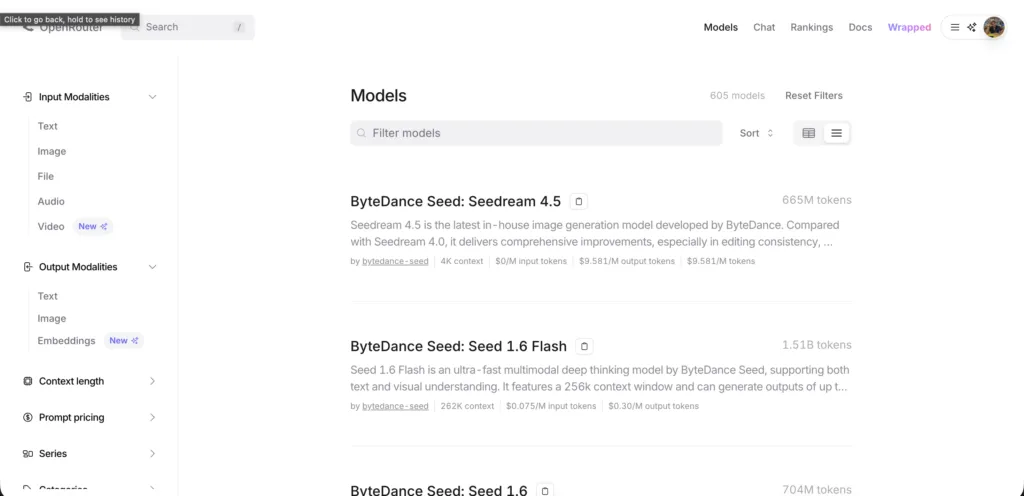
- Each model card has a copy icon or hover tooltip.
- Click “Copy model id”
meta-llama/llama-3.1-8b-instruct
⚠️ This exact string is what PinkDocs needs.
- In AI Model, choose Custom Model
- Paste the copied model ID
- Save settings
Important notes (worth documenting)
- PinkDocs does not validate model capability
→ If you pick an image-only model for text tasks, results may fail. - Billing & pricing are handled entirely by OpenRouter
- Some models may be slower or more expensive
PinkDocs will now route AI requests through OpenRouter.
Was this page helpful?
Great! What worked best for you?
Please
provide
additional details about your experience.
✓ Thank you for your feedback! We appreciate your input.