

PinkDocs allows you to control exactly who can access each knowledge base, making it easy to create public documentation, customer-only help centers, or fully private internal docs. Using access restrictions, you can limit visibility to logged-in users or specific WordPress user roles, ensuring the right content is seen by the right audience.
How To Restrict Knowledgebase

- Go to WordPress Admin → PinkDocs → Knowledge Bases
- Locate the knowledge base you want to restrict
- Click the Edit (✏️) icon for that knowledge base
- In the Edit Knowledge Base modal, enable Restrict Access
- Select All logged-in users to allow any authenticated user to access the KB
- Select Specific user roles to limit access to selected roles only
- Check the roles you want to allow access to (Administrator, Editor, Author, Contributor, Subscriber)
- Close the modal to save changes automatically
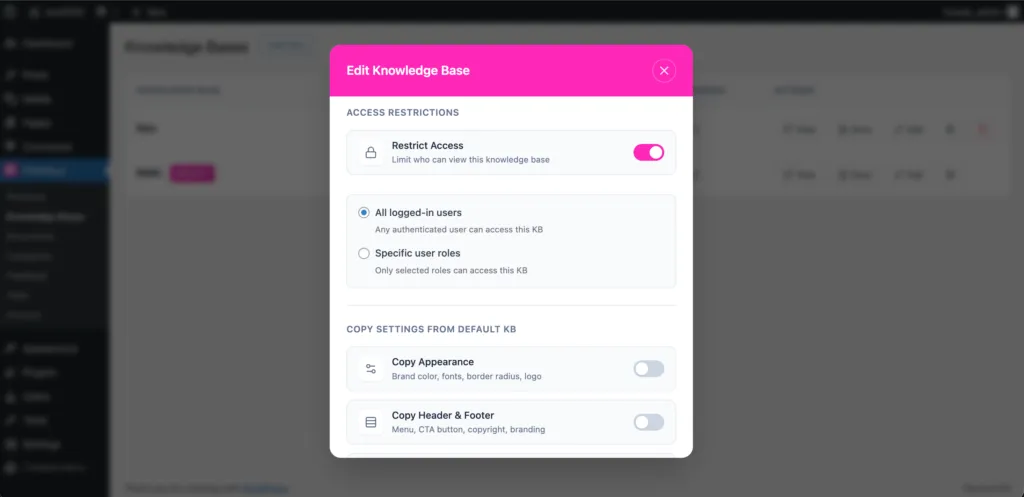
Once access restrictions are applied, only the selected users or user roles will be able to view this knowledge base on the frontend. Any users who are not authorized will be completely blocked from accessing the knowledge base, and its documents will not be visible or discoverable to them anywhere on the site.
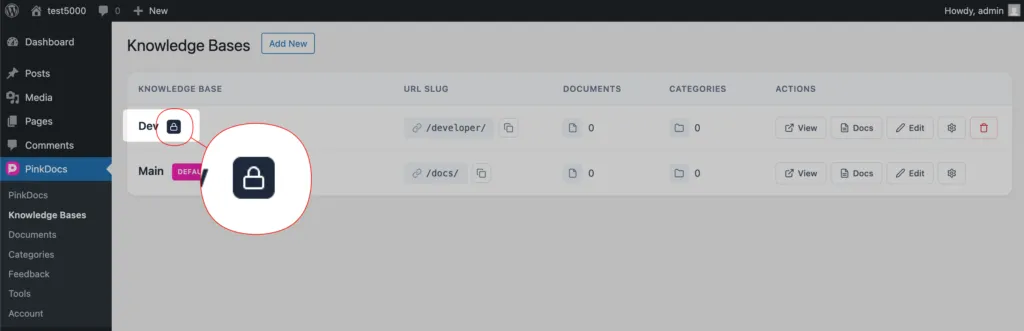
The lock icon next to a knowledge base name indicates that access restrictions are enabled for that knowledge base. This confirms that the knowledge base is private, and only authorized users or selected user roles can view its content on the frontend.
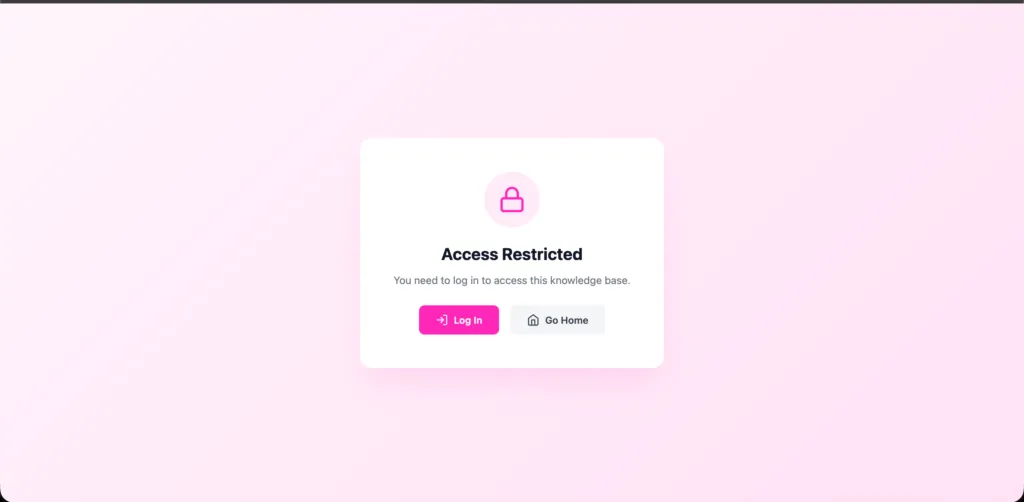
This is how the knowledge base will appear on the frontend to an unauthorized user, where access is restricted and the content is not visible.