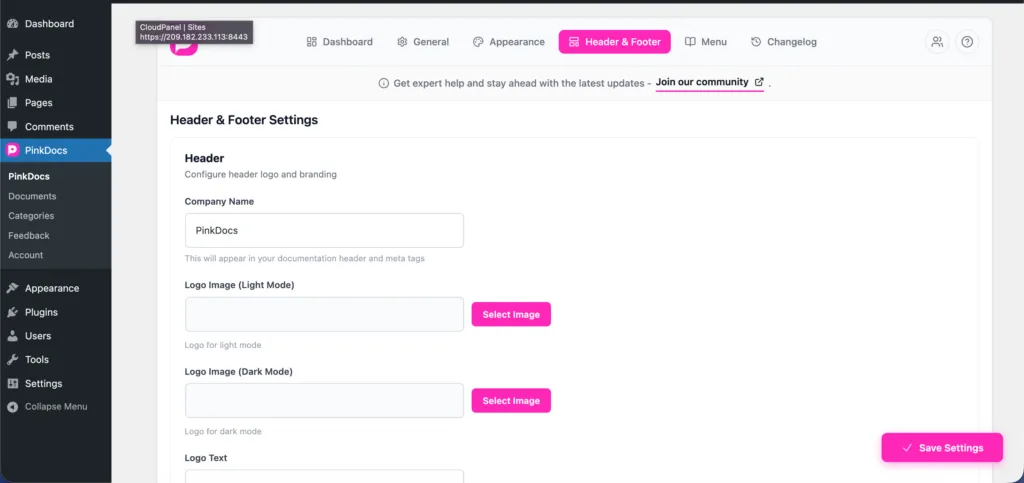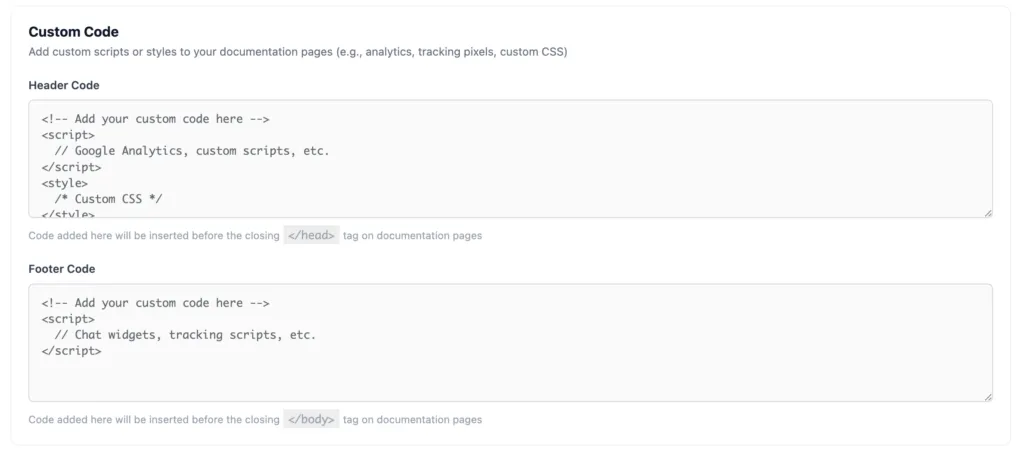


Location: Plugin Settings → Header & Footer → Footer
PinkDocs uses Google Cloud Translation to add multi-language support to your documentation.
Step 1: Enable Translation
- Go to Plugin Settings → Header & Footer
- Scroll to the Footer section
- Toggle Enable Translation Feature to ON

This activates multi-language support in your documentation footer.
Step 2: Get a Google Cloud Translation API Key
- Visit the Google Cloud Console
- Create or select a project
- Enable Cloud Translation API
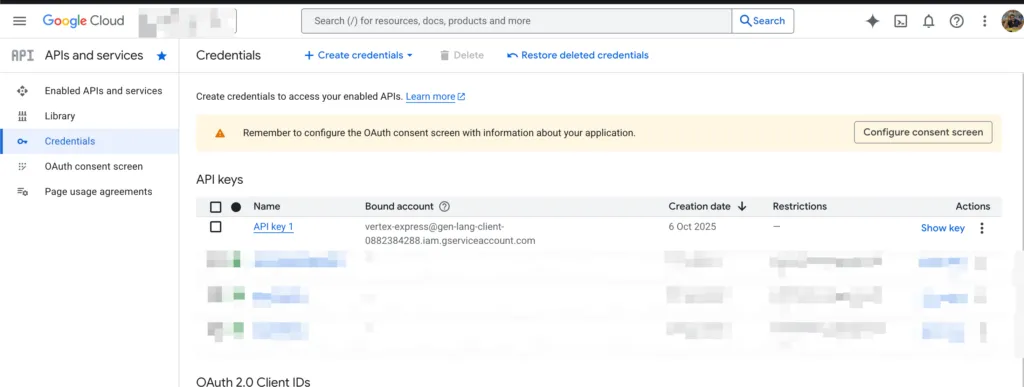
- Go to APIs & Services → Credentials
- Create an API Key
Google may require billing to be enabled for the Translation API.
Step 3: Add the API Key
- Copy your Google Cloud Translation API Key
- Paste it into the Google Cloud Translation API Key field in PinkDocs
- Click Save Settings
Step 4: Use Translation on the Frontend
- A language selector appears in the footer
- Visitors can translate documentation into supported languages
- Translations happen instantly using Google Translate
Important Notes
- A valid API key is required for translations to work
- Usage is subject to Google Cloud pricing
- Translations are dynamic and do not modify original content
- Works across all PinkDocs pages automatically
This allows your documentation to reach a global audience with zero content duplication.
Was this page helpful?
Great! What worked best for you?
Please
provide
additional details about your experience.
✓ Thank you for your feedback! We appreciate your input.