

PinkDocs lets you easily customize the typography of your documentation to match your brand or website style. Follow the steps below to change the font.
Step 1: Open PinkDocs → Appearance
From your WordPress dashboard:
- Click PinkDocs in the left sidebar
- Open the Appearance tab
- Scroll to the Typography section
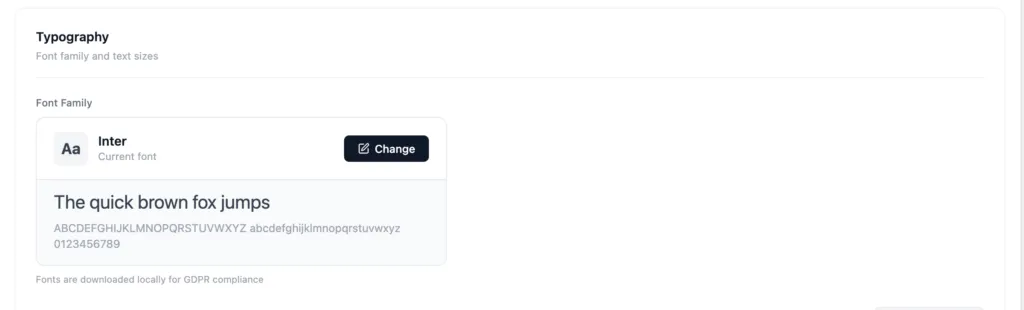
Step 2: Click “Change” Font
Under Font Family, you’ll see the currently selected font.
- Click the Change button
- A Choose Font modal will open
Step 3: Select Your Font
In the font selector modal, you have two options:
Use Theme Default
- Choose Theme Default to inherit your WordPress theme’s font
- Best if you want your docs to perfectly match your website
Choose a Google Font
- Search from 1000+ Google Fonts
- Click any font to preview it instantly
- The preview text helps you check readability before applying
Step 4: Save Your Changes
After selecting your font:
- Close the font selector
- Click Save Settings to apply the new typography
Your docs now look cleaner, more readable, and fully on-brand ✨
Adjust Typography & Text Sizes
PinkDocs also lets you fine-tune text sizes for better hierarchy and readability.
Available Typography Controls
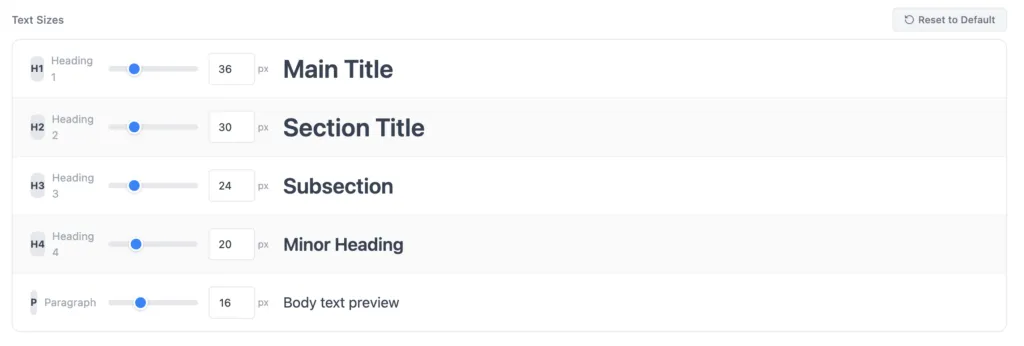
Under Text Sizes, you can customize:
- H1 – Main Title
- H2 – Section Title
- H3 – Subsection
- H4 – Minor Heading
- P – Paragraphs
How to Adjust Text Sizes
- Use the slider to visually scale text
- Or enter an exact px value for precision
- Changes are reflected instantly in the preview
You can also click Reset to Default anytime to restore recommended sizes.
Line Height – How to Use It

Line Height controls the vertical spacing between lines of text in your documentation. Adjusting it helps improve readability and makes long content easier to scan.
Location: PinkDocs → Appearance
How it works
- Use the slider to increase or decrease the space between text lines.
- The number shown (for example, 1.6) represents the spacing ratio relative to the text size.
Recommended setting
- 1.6 (Default) – Ideal for most documentation
- Comfortable to read
- Works well for long paragraphs
- Reduces eye strain
When to adjust it
- Lower value (1.3 – 1.4)
- Compact layout
- Good for short descriptions or dense layouts
- Higher value (1.7 – 1.9)
- Airy, relaxed reading
- Great for guides, tutorials, and knowledge bases
Live preview
The preview box updates instantly, so you can see exactly how your text will look before saving the setting.
Apply Changes
Once you’re happy with the typography:
- Click Save Settings
- Your typography updates will apply across the frontend documentation
Typography changes do not affect the WordPress admin area.
Best Practices
- Use slightly larger H1–H2 sizes for scannability
- Keep body text comfortable (16–18px recommended)
- Stick to 1 font family for a clean, professional docs experience
Your PinkDocs documentation now looks polished, readable, and professional.