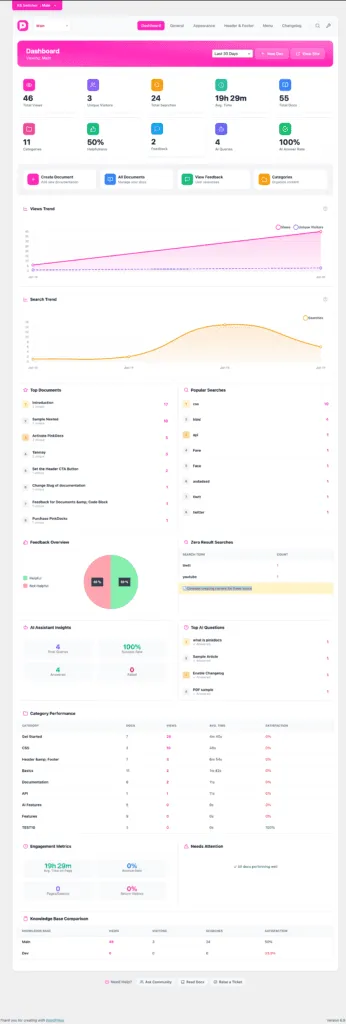


PinkDocs comes with a native, beautifully designed changelog system—so your users always know what’s new, improved, or fixed.
No extra plugins. No manual pages. Just updates that look premium by default.

How to enable Changelog
- Go to WordPress Admin → PinkDocs → Changelog
- Toggle Enable Changelog to ON
- Click Save Settings
That’s it.
Other Changelog Features
Filter Panel

The Filter Changes panel helps you quickly narrow down what kind of updates you want to see in the changelog, instead of scrolling through everything.
Here’s how each option works:
- All Changes
Shows everything in the changelog — new features, improvements, and bug fixes combined.
The number badge (e.g. 51) shows the total count of changes available. - New Features
Displays only brand-new functionality that was added.
Use this to quickly spot major updates or newly introduced tools. - Improvements
Shows enhancements to existing features — performance boosts, UX refinements, better defaults, or expanded capabilities. - Bug Fixes
Lists only resolved issues and fixes.
Useful if you’re checking whether a specific problem you faced has been addressed.
Emoji reactions

Why this is useful:
- Helps you see which updates users care about most
- Acts as lightweight feedback without comments
- Great for prioritizing future improvements
Why is Changelog important
- Lets users scan updates faster
- Helps different audiences (users vs devs) focus on what matters to them
- Makes the changelog feel less noisy and more structured
Your Changelog, Instantly Live
- A dedicated changelog page is automatically created
- Example URL:
https://yourwebsite.com/docs/changelog/ - The page is automatically added to the header menu as the last item
Your updates are instantly visible and easy to find.
Adding & Editing Changelog Versions
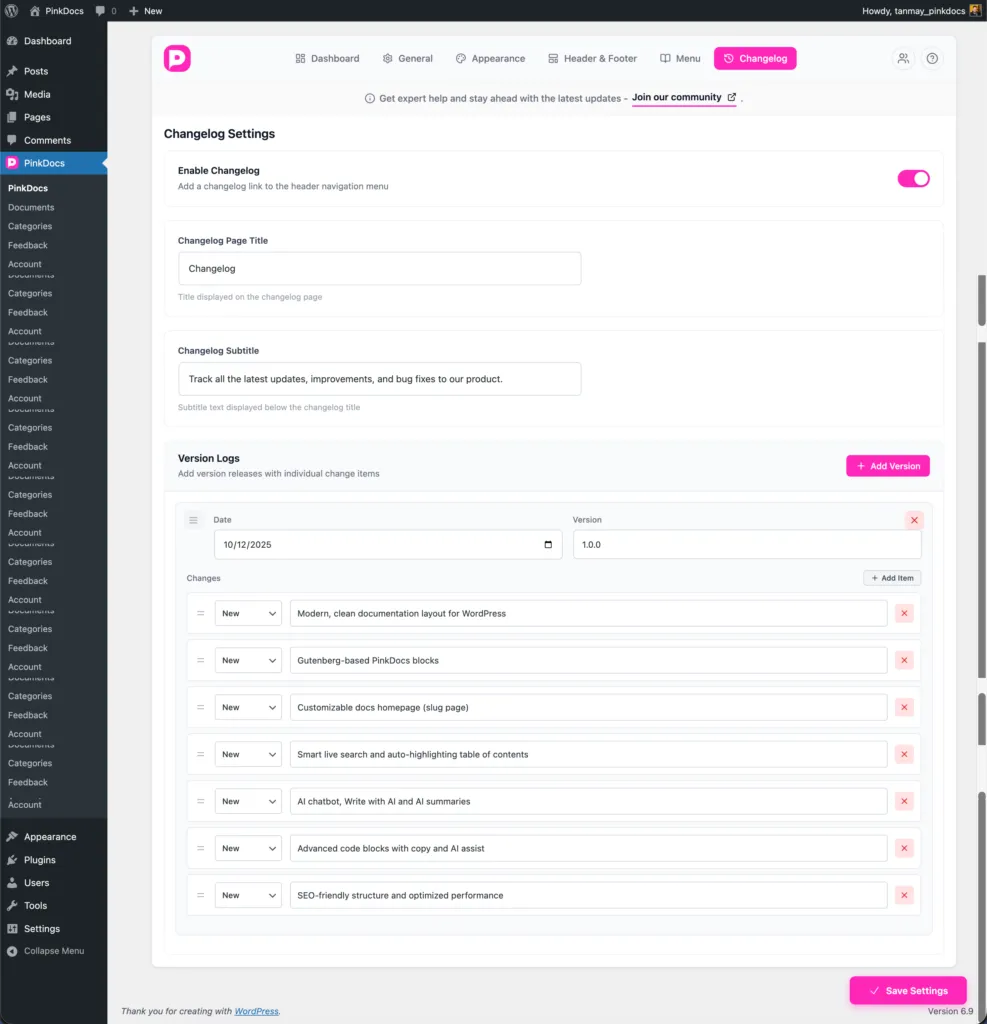
PinkDocs makes managing your changelog simple, structured, and fast—so updating users never feels like a chore.
How to Add a New Version
- Go to PinkDocs → Changelog
- Click Add Version
- Enter the version number (for example, 1.2.0)
- Select the release date
- Start adding individual change items
That’s it—your new release is ready to publish.
How to Add Features or Changes
Inside each version, you can add multiple change items:
- Click Add Item
- Choose the change type:
- New
- Improved
- Fixed
- Write a short, clear description of the update
Each item is displayed as a clean, readable entry on the changelog page.
Editing Existing Versions
You can update your changelog at any time:
- Modify version numbers or dates
- Edit feature descriptions
- Change the update type (New, Improved, Fixed)
- Reorder items for better clarity
- Remove outdated entries
All changes are reflected instantly on the frontend.
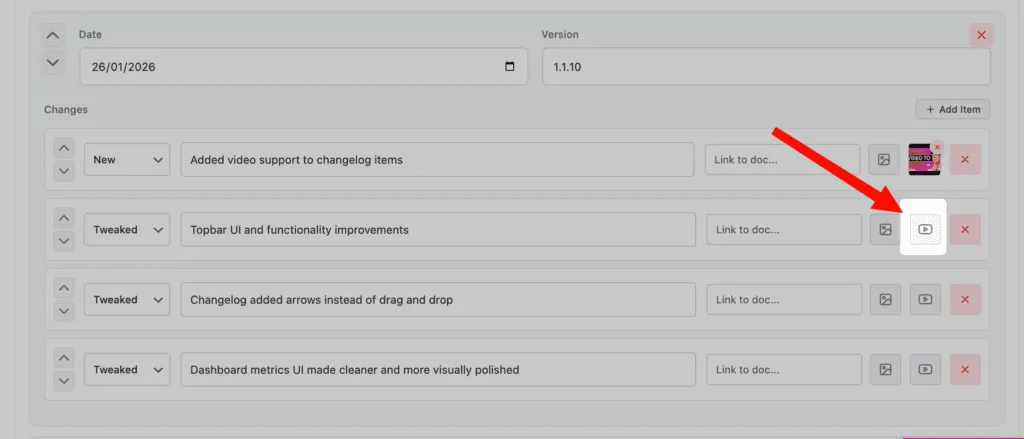
How to add image
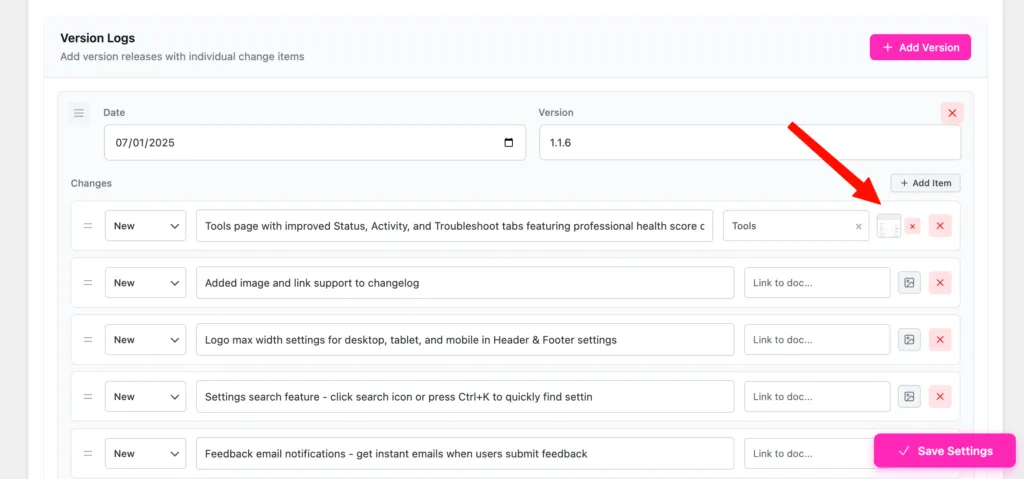
- Open Version Logs and edit the version where you want to add the image.
- Find the specific change item you want to attach the image to.
- Click the image (🖼️) icon on the right side of that change row.
- Upload a new image or select one from the media library.
- Confirm the selection.
- Click Save Settings to apply the changes.
How To Add Documentation link
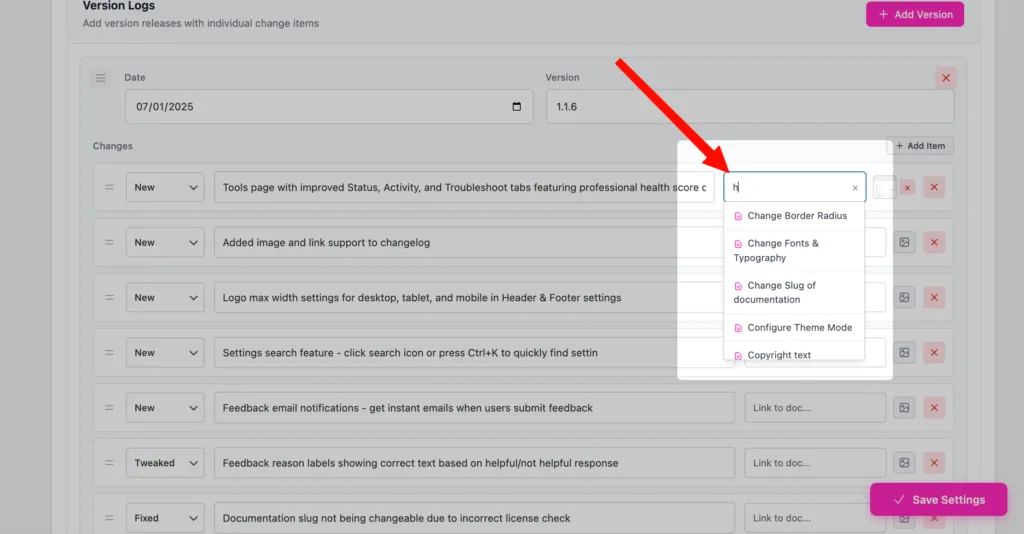
- Go to PinkDocs → Version Logs from your WordPress dashboard.
- Click Add Version or open an existing version you want to edit.
- Under the Changes section, add a new changelog item or use an existing one.
- On the right side of that changelog row, click inside the “Link to doc…” field or click the document icon next to it.
- A search popup will open. Start typing the documentation title or keyword (for example: header, theme, slug, typography).
- Select the correct documentation page from the search results.
- The selected documentation will automatically be linked to that changelog item.
- Click Save Settings to store the changes.
Best Practices for Great Changelogs
- Keep entries short and user-focused
- Highlight major features first
- Group related changes under one version
- Update consistently with every release
Why This Works So Well
- No manual page creation
- No formatting headaches
- Structured updates that scale as your product grows
The changelog entry will now display a clickable documentation link for users.
With PinkDocs, your changelog stays clean, professional, and always up to date—giving users confidence in every release.
Fully Managed From the Dashboard
Control everything from
PinkDocs → Changelog
You can:
- Enable or disable the changelog anytime
- Set a custom page title and subtitle
- Add multiple versions with release dates
- List individual changes under each version
Structured, Clear Update Logs
Each release supports:
- Version number
- Release date
- Change types like New, Improved, or Fixed
- Multiple update entries per version
This keeps your updates clean, readable, and professional.
Designed for Trust and Transparency
A well-maintained changelog:
- Builds confidence with users
- Reduces support questions
- Shows active product development
- Encourages upgrades and engagement
Why Teams Love It
- Zero setup
- Automatically linked in navigation
- Looks great out of the box
- Perfect for SaaS, plugins, and products
PinkDocs turns your changelog into a product marketing asset, not just a list of updates.