

The Tools section is designed to help you diagnose issues, optimize performance, and safely manage advanced settings—without touching code or configuration files. All tools are built with simplicity and safety first, so even non-technical users can use them confidently.

Available Tools
1. Debug Mode (Soft-Enabled)
Debug Mode is enabled by default to help detect issues early and improve support accuracy.
- Runs silently in the background
- Does not impact site performance or user experience
- Helps generate accurate logs for faster troubleshooting
You can turn this off anytime from Tools → Debug.
2. System Status
View your site’s environment at a glance:
- WordPress version
- PHP version
- Memory limits
- Active theme & plugins
- REST API & AJAX status
Useful when sharing details with support.
3. Logs Viewer
Access error and activity logs directly from the dashboard:
- Plugin-specific logs
- Debug and warning messages
- Timestamped entries for easy tracing
No need to dig into server files.
4. Health Checks
Run automated checks to detect common issues:
- Conflicting plugins
- Missing PHP extensions
- Incorrect server configurations
- Deprecated functions
Get clear suggestions on what needs fixing.
5. Reset & Cleanup Tools
Safely reset specific plugin data without affecting your site:
- Clear cache
- Reset plugin settings
- Rebuild indexes (if applicable)
Each action is clearly labeled to avoid mistakes.
6. Export Support Report
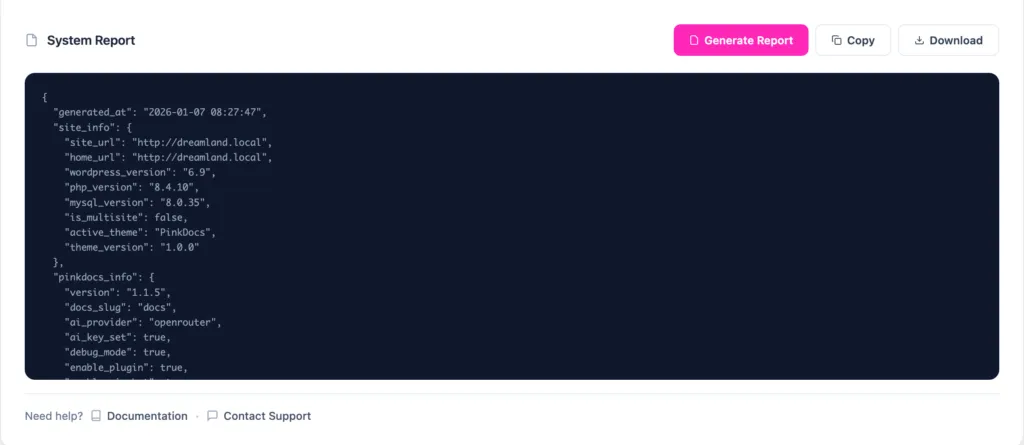
Generate a complete support report in one click:
- System status
- Active plugins & versions
- Logs (sanitized)
- Plugin configuration snapshot
Perfect for sharing with the dev/support team.
Safety & Privacy
- No data is sent automatically
- Logs never include sensitive user information
- You stay in full control of exports and resets
Why the Tools Section Exists
We built Tools so users don’t have to edit wp-config files, enable hidden constants, or guess what’s wrong. Everything needed for debugging and maintenance lives in one clear, accessible place.