

PinkDocs makes it easy to backup, migrate, and sync your documentation across websites using a simple JSON-based import/export system. This is especially useful when:
- Moving docs from staging → production
- Reusing documentation across multiple projects
- Creating regular backups
- Sharing docs with teammates or clients
Where to Find Import / Export
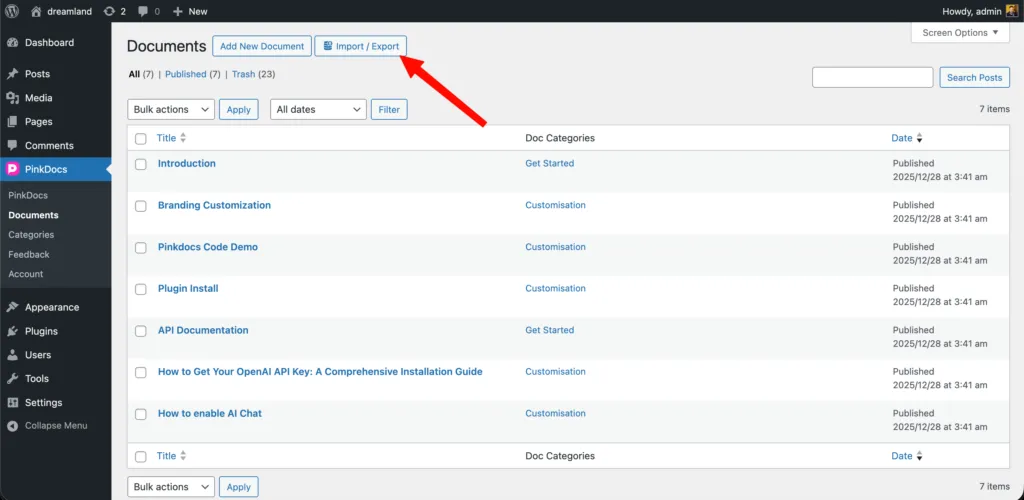
- Go to
WordPress Admin → PinkDocs → Documents - Click the Import / Export button at the top
This opens a modal with two tabs:
- Export
- Import
Exporting Documents
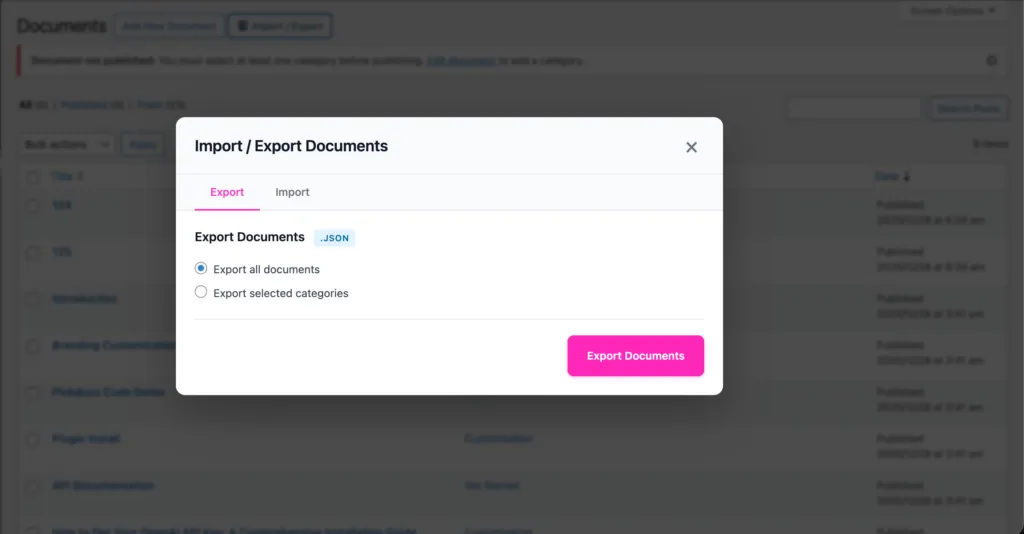
Export Format
- All exports are generated as a
.jsonfile - This file contains:
- Document content
- Titles & slugs
- Categories
- Hierarchy
- Featured image references
- Gutenberg block data (including code blocks)
Export Options Explained
1. Export all documents
- Exports every PinkDocs document on your site
- Best for:
- Full backups
- Migrating an entire knowledge base
- Cloning docs to another site
Use this if you want a complete snapshot of your documentation.
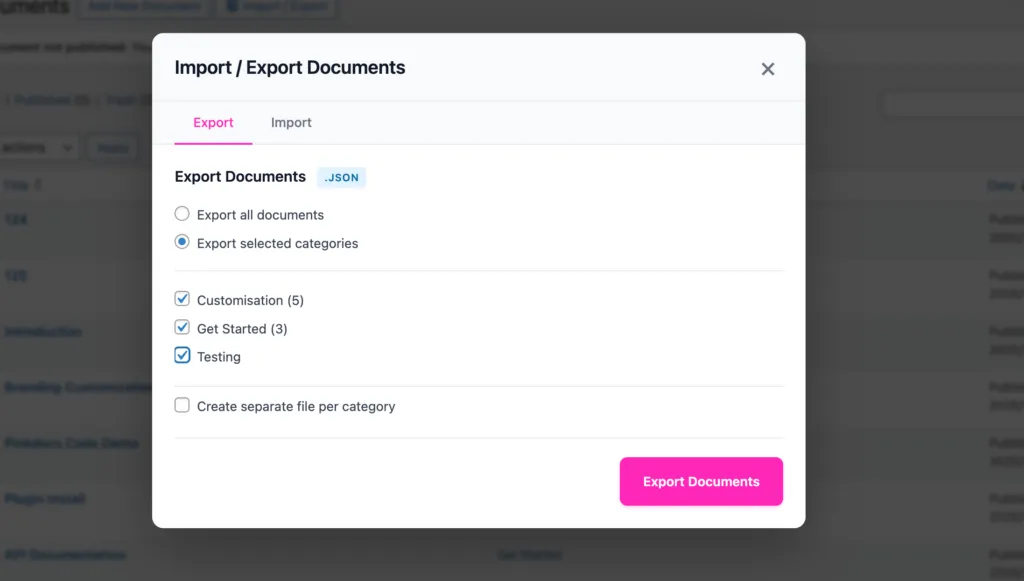
Export selected categories
- Lets you export docs from specific categories only
- Each category shows the number of documents inside it
- Ideal when:
- You maintain multiple products in one site
- You want to move only part of your docs
- You want separate exports per product or platform
Example:
- Export only Get Started
- Skip Customisation or Testing
3. Create separate file per category
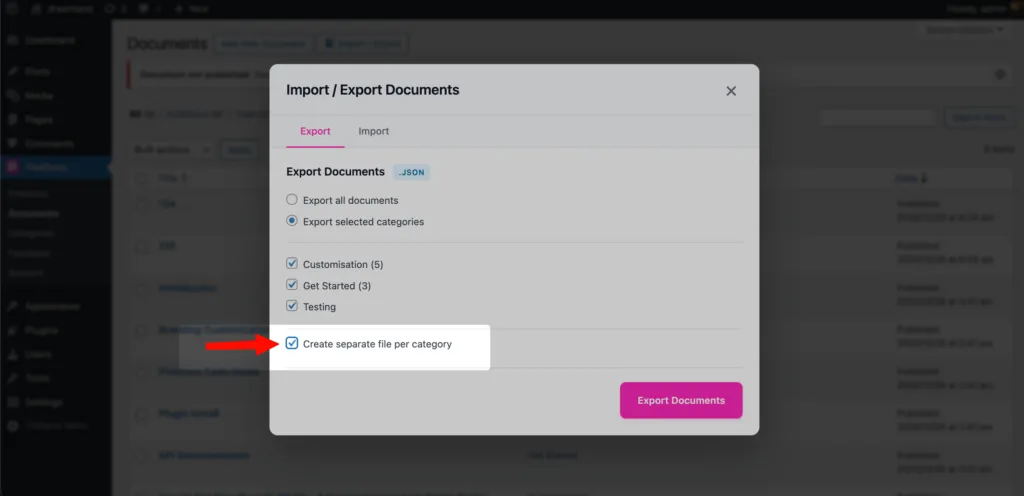
- When enabled: Each selected category is exported as its own JSON file
- When disabled: All selected categories are bundled into one JSON file
Recommended when:
- You manage large documentation sets
- You want category-level versioning
- Different teams handle different doc sections
Export Action
- Click Export Documents
- PinkDocs instantly downloads the JSON file(s)
- File name includes a timestamp for easy tracking
pinkdocs-export-2025-12-27-204527.json
Importing Documents
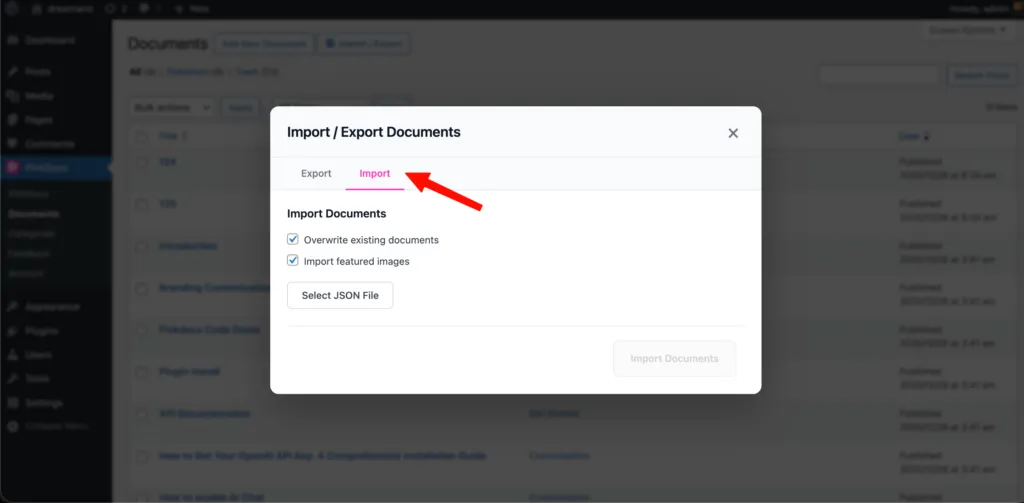
Switch to the Import tab inside the same modal.
Import Options Explained
1. Overwrite existing documents
- When enabled:
- Existing documents with matching slugs are updated
- When disabled:
- Existing documents are left untouched
- Only new documents are added
Use this when:
- Syncing updates from staging → live
- Replacing outdated documentation
- Keeping docs consistent across sites
2. Import featured images
- Downloads and assigns featured images included in the export
- Images are added to WordPress Media Library automatically
Disable this if:
- You want to reuse local images
- You are testing imports
- You want faster imports without media
3. Select JSON File
- Click Select JSON File
- Upload a PinkDocs export file (
.json) - Only PinkDocs-compatible files are supported
How to Import Documents
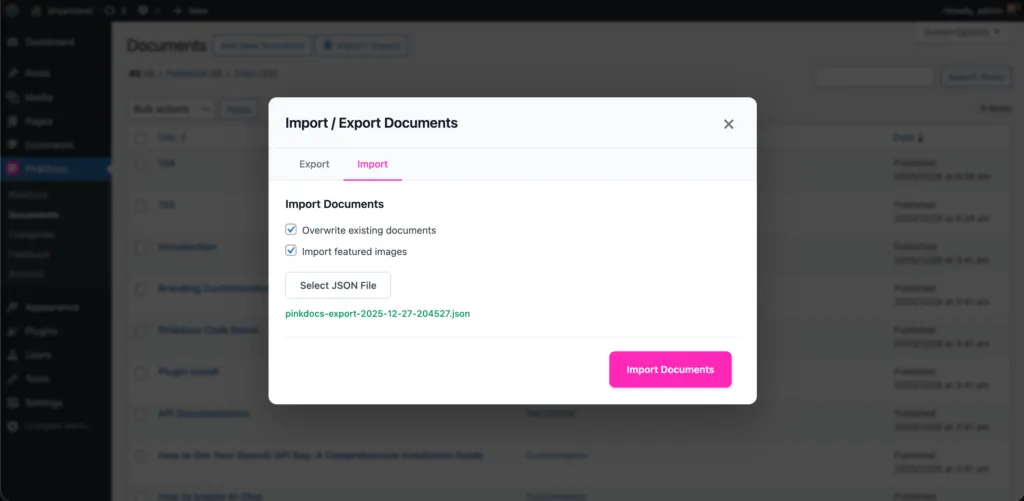
- Go to
WordPress Admin → PinkDocs → Documents - Click the Import / Export button at the top
- Inside the modal, click the Import tab
- You’ll now see the import options and file selector
- Choose Import Settings
Before selecting the file, configure how the import should behave.
✅ Overwrite existing documents
✅ Import featured images - Click Select JSON File
- Choose a PinkDocs export file (
.json) from your computer - The selected filename will appear below the button
Only files generated by PinkDocs exports are supported.
- Click Import Document
- PinkDocs will process the file and import the content
Do not refresh or close the page while the import is running.
Once finished, you’ll see a results summary:
- Imported → New documents created
- Updated → Existing documents updated
- Errors → Any documents that failed to import
If errors are 0, your import was successful.
- Click Close
- Return to PinkDocs → Documents
Confirm that:
- Documents appear correctly
- Categories are intact
- Content, code blocks, and images look correct
What Gets Imported Automatically
- Document titles and content
- Categories and hierarchy
- Gutenberg blocks (including code blocks)
- Slugs and structure
- Featured images (if enabled)
Your documentation will look exactly the same as the original site.
Was this page helpful?
Great! What worked best for you?
Please
provide
additional details about your experience.
✓ Thank you for your feedback! We appreciate your input.