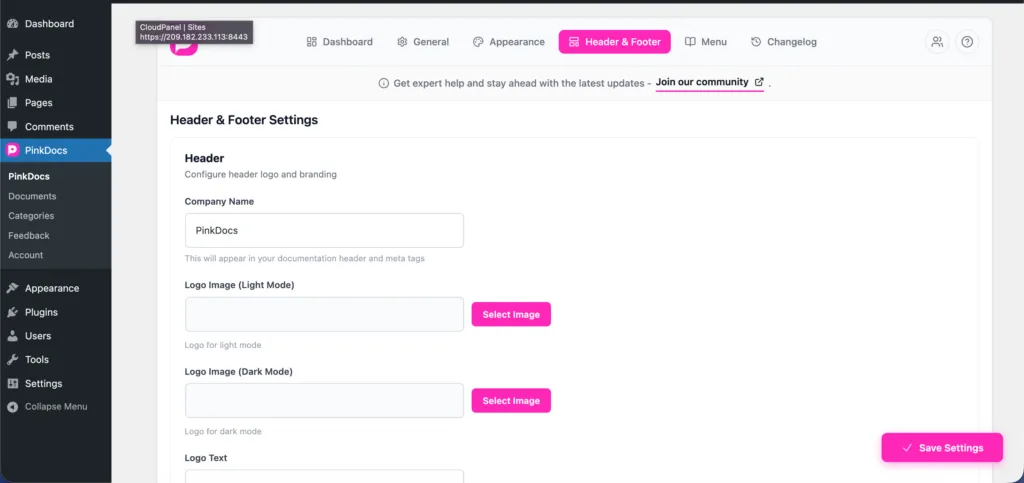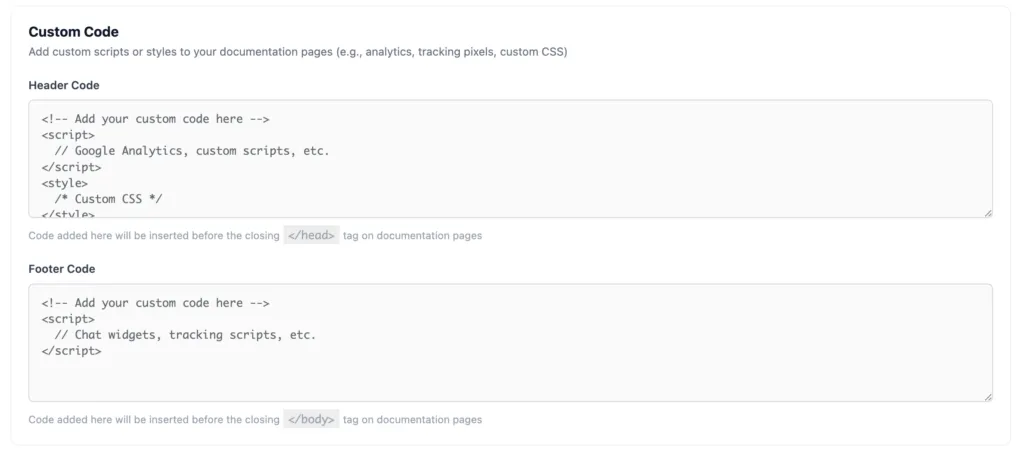


Location: Plugin Settings → Header & Footer
The Header CTA lets you add a prominent action button in your documentation header.
Step 1: Enable the Header CTA
- Go to WordPress Dashboard → Plugin Settings → Header & Footer
- Locate the CTA section
- Enable the Header CTA option
Step 2: Set CTA Text
- Enter the button label in the CTA Text field
Example:Get Started,Contact Sales,Upgrade Now
This text is displayed on the CTA button in the header.
Step 3: Set CTA URL
- Add a full URL in the CTA URL field
Example:https://yourwebsite.com/pricing
When users click the CTA button, they are redirected to this link.
Step 4: Choose CTA Behavior (if available)
- Open in same tab or new tab
- Show or hide CTA on documentation pages
How the Header CTA Works
- The CTA appears on the right side of the header
- It stays visible while navigating documentation pages
- Styling automatically matches your PinkDocs brand colors
- Works alongside the WordPress menu without conflict
Best Practices
- Use action-oriented text (Upgrade, Start Trial, View Pricing)
- Link to high-intent pages like pricing or contact
- Keep CTA text short for better visibility
This makes your documentation header conversion-focused while keeping it clean and professional.
Was this page helpful?
Great! What worked best for you?
Please
provide
additional details about your experience.
✓ Thank you for your feedback! We appreciate your input.