

The Image Lightbox feature allows users to click on images inside documentation pages to view them in an enlarged, distraction-free overlay.
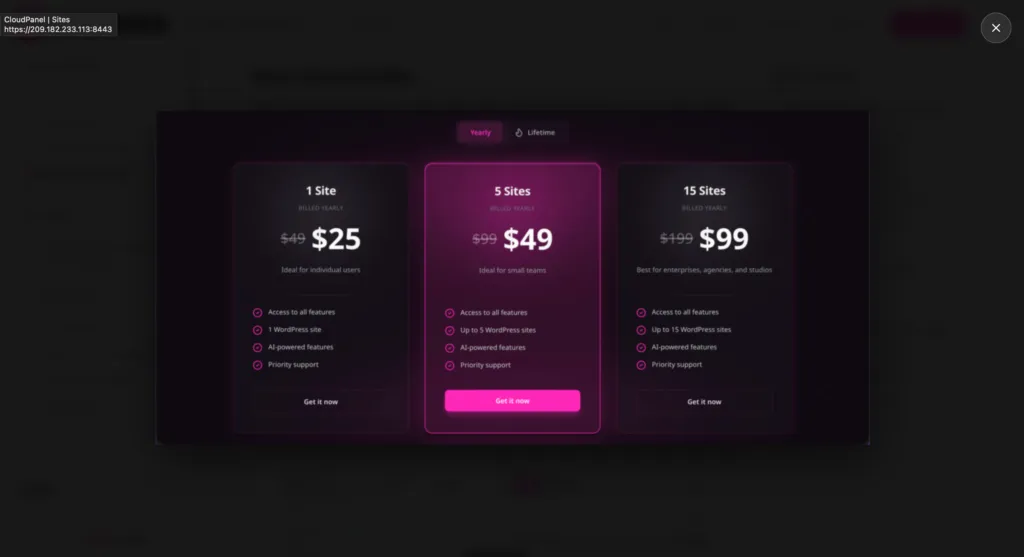
It is enabled by default and is fully responsive across desktop, tablet, and mobile devices.
Step-by-Step: Enable Image Lightbox
Step 1: Open PinkDocs Settings
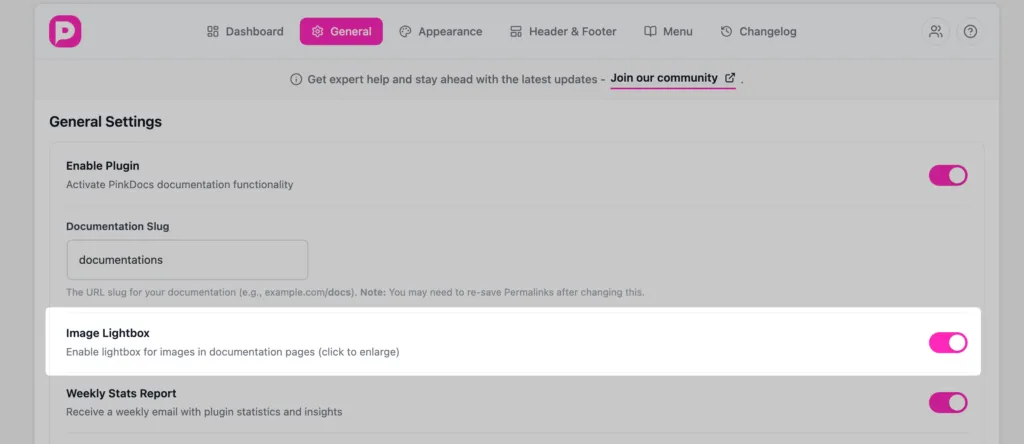
- Log in to your WordPress Admin Dashboard
- Navigate to PinkDocs → Settings
- Click on the General tab
Step 2: Locate the Image Lightbox Option
Scroll down until you find the Image Lightbox setting.
You’ll see the description:
Enable lightbox for images in documentation pages (click to enlarge)
Step 3: Enable the Toggle
- Make sure the toggle is ON (pink)
- If it’s already enabled, no action is required (this is the default state)
✅ Changes are saved automatically.
Step 4: Test the Lightbox
- Open any documentation page
- Click on an image inside the content
- The image should open in a full-screen lightbox overlay
Responsive Behavior
The Image Lightbox is optimized for all screen sizes:
- Desktop: Click to enlarge with smooth animations
- Tablet: Touch-friendly zoom view
- Mobile: Full-screen responsive preview with easy close action
No additional configuration is required for responsiveness.
When Should You Disable It?
You may choose to turn it OFF if:
- You prefer inline images only
- You are using a custom image interaction plugin
- Your documentation is text-only
Was this page helpful?
Great! What worked best for you?
Please
provide
additional details about your experience.
✓ Thank you for your feedback! We appreciate your input.