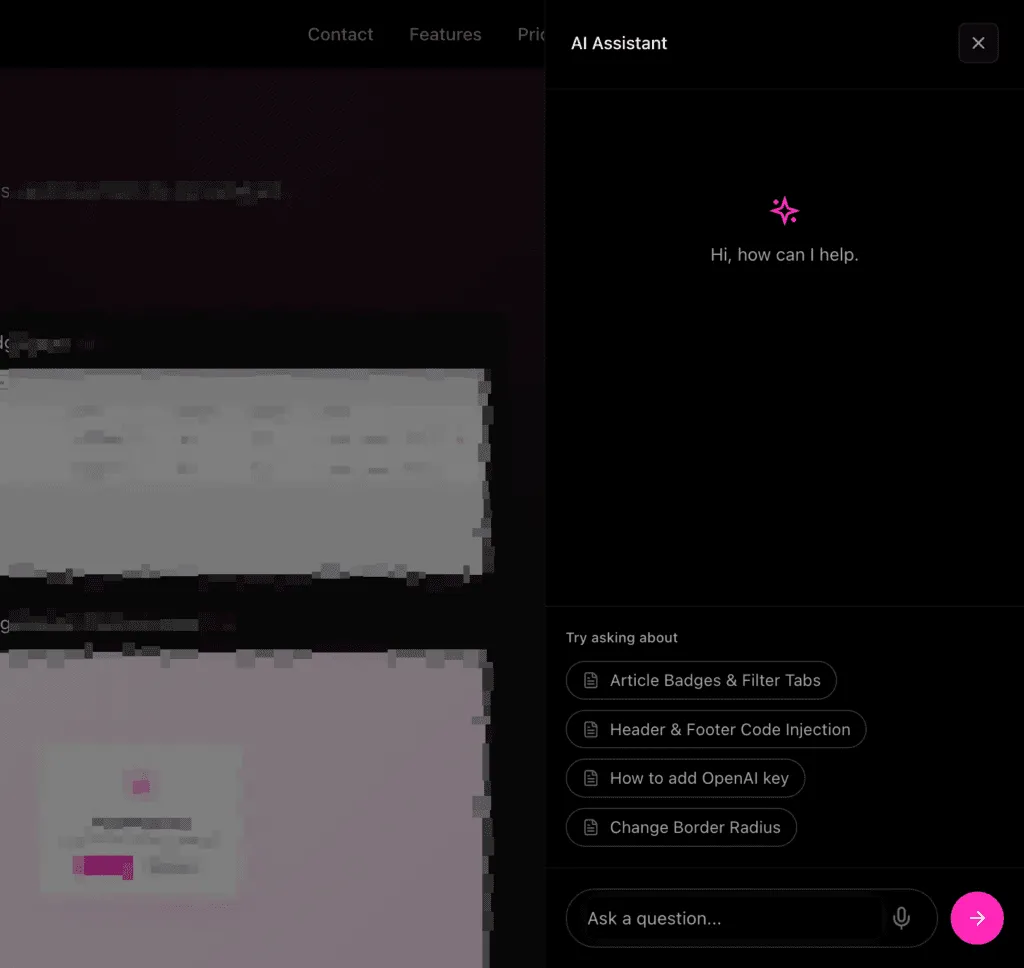


PinkDocs includes built-in AI-powered assistance to help users find answers faster and help authors write better documentation.

Enabling AI Features
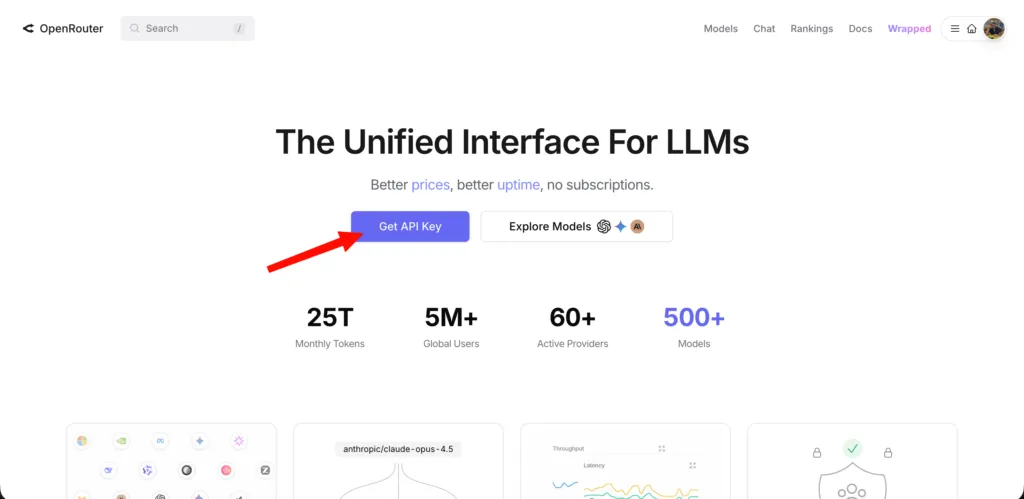
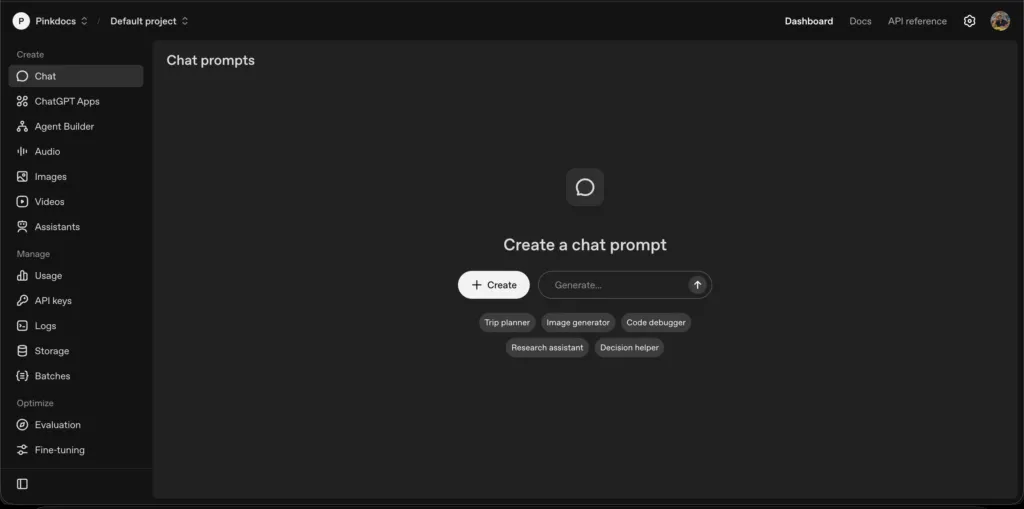
Ensure you have either added OpenAI or Open Router api keys for the AI features to work.Please refer to these documentations.
– How to add Open AI key
– How to add OpenRouter AI key
– How to add Open AI key
– How to add OpenRouter AI key
Location: Plugin Settings → General AI →Features
How to Enable
- Go to Plugin Settings → AI Features
- Toggle Write With AI to ON
- Open any document to start using it
You’ll see a Write With AI field on the frontend itself.
Ensure you have either added OpenAI or Open Router api keys for the AI features to work.Please refer to these documentations.
– How to add Open AI key
– How to add OpenRouter AI key
– How to add Open AI key
– How to add OpenRouter AI key
What It Does
- Adds an Ask AI assistant to your documentation
- Users can ask questions in natural language
- AI answers are generated using your documentation content
Voice Input for AI Assistant
You can now use your microphone to talk to the AI Assistant instead of typing. This makes asking questions quicker and more natural, especially when working on long or complex documentation.
How it works
- Click the mic icon in the AI Assistant
- Speak your question
- The AI converts your voice to text and responds instantly
How It All Works Together
- One OpenAI key powers all AI features
- AI Chat helps readers get instant answers
- Write With AI helps authors create better docs faster
- Support links ensure smooth handoff to human support
Key Benefits
- Faster support resolution
- Reduced repetitive questions
- Better documentation quality
- Seamless AI + human support experience
PinkDocs turns your documentation into an intelligent, self-serve support system powered by AI.
Was this page helpful?
Great! What worked best for you?
Please
provide
additional details about your experience.
✓ Thank you for your feedback! We appreciate your input.