


To use PinkDocs, you first get your licence key and the latest plugin file from your customer dashboard, then install the plugin on your WordPress site and activate your licence. The whole process takes about five minutes.
Get your licence key and plugin file
Your licence key, plugin file and subscription are all in your customer dashboard, which is provided by Dodo Payments, our payment provider. You sign in with your email address, so there’s no password to remember.
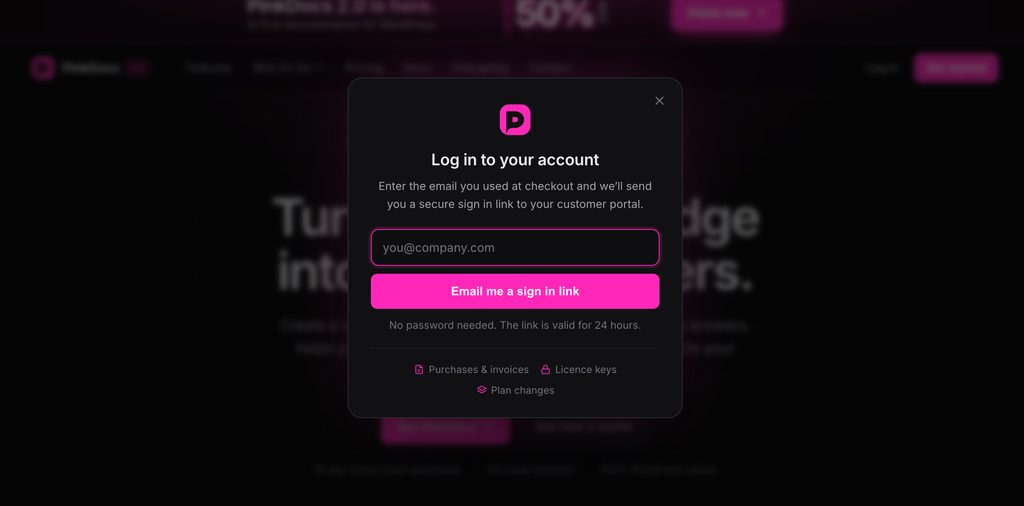
Enter your email address
Go to https://pinkdocs.com/account and enter your email address.
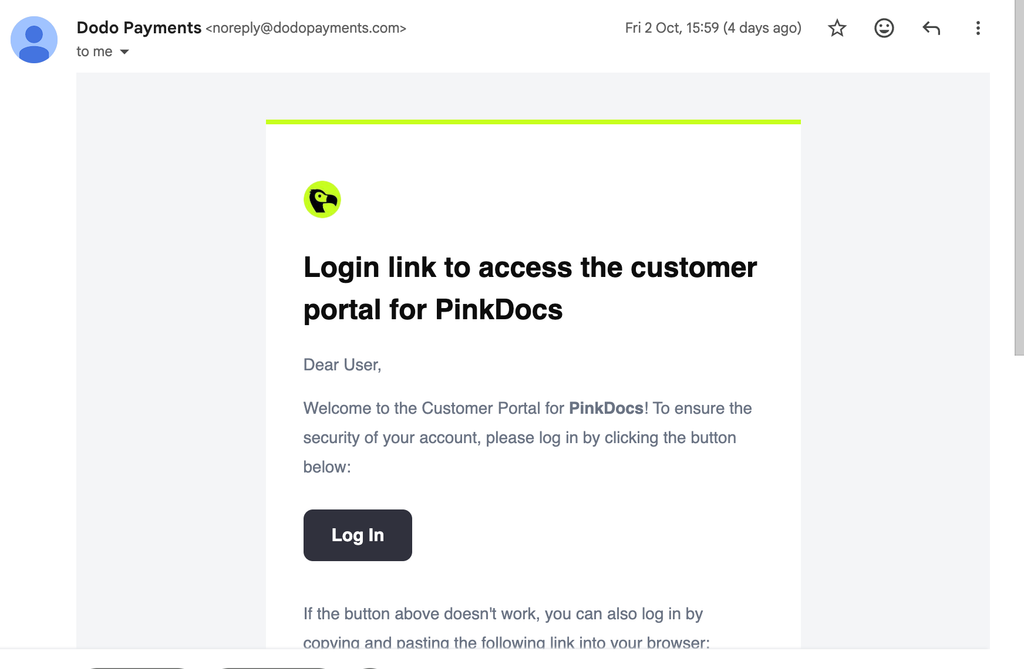
Check your email from Dodo Payments
Dodo Payments sends you an email with a link to sign in to your customer dashboard. Open the email and click the sign-in link.
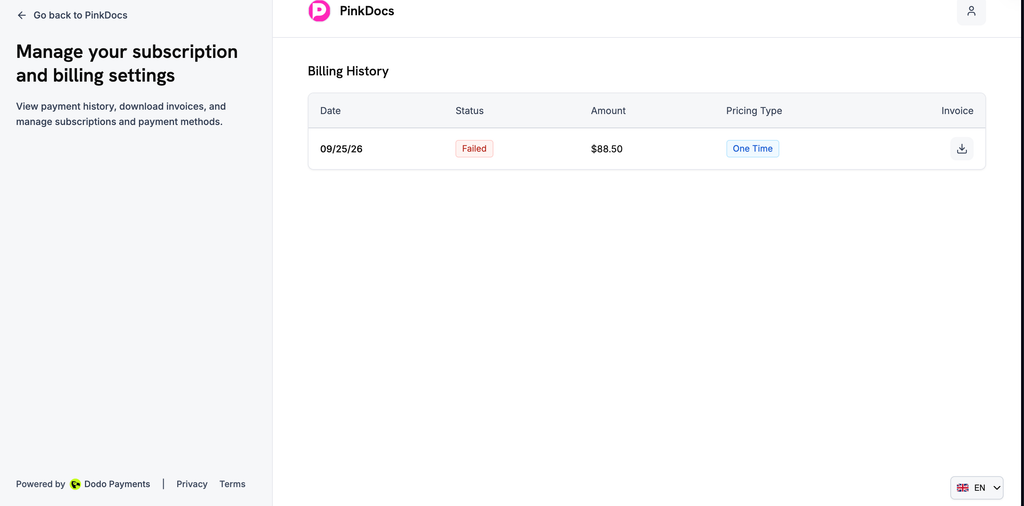
Open your customer dashboard
The link opens your customer dashboard, where you can see your PinkDocs licence and subscription.
Copy your licence key
Copy your licence key and keep it somewhere safe. You’ll need it to activate PinkDocs.
Download the latest plugin file
Download the PinkDocs plugin zip file. The dashboard always has the latest version.
Install and activate the plugin
Upload the plugin
In your WordPress admin, go to Plugins → Add New Plugin and click Upload Plugin at the top of the page.
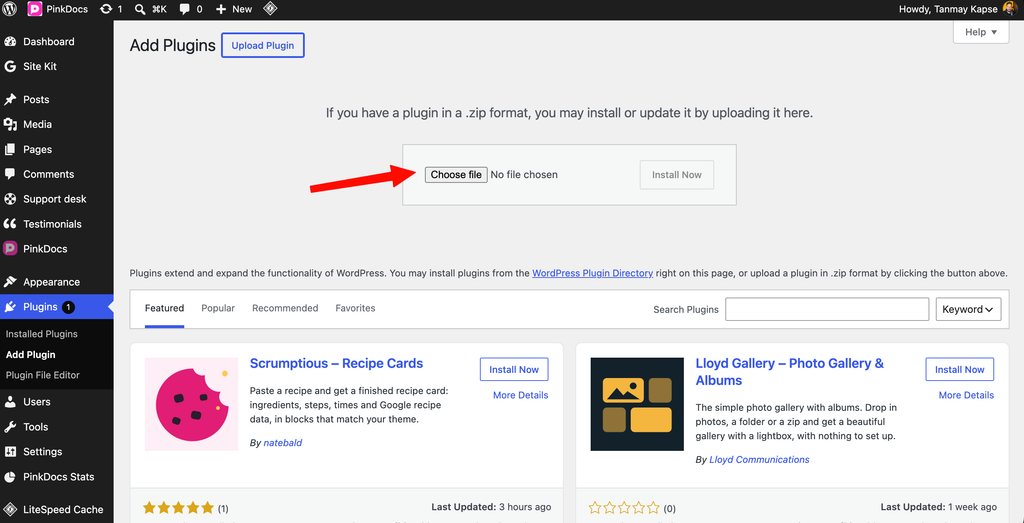
Choose the zip file
Click Choose File and select the PinkDocs zip file you downloaded. Don’t unzip it first.
Install and activate
Click Install Now. When installation finishes, click Activate Plugin.
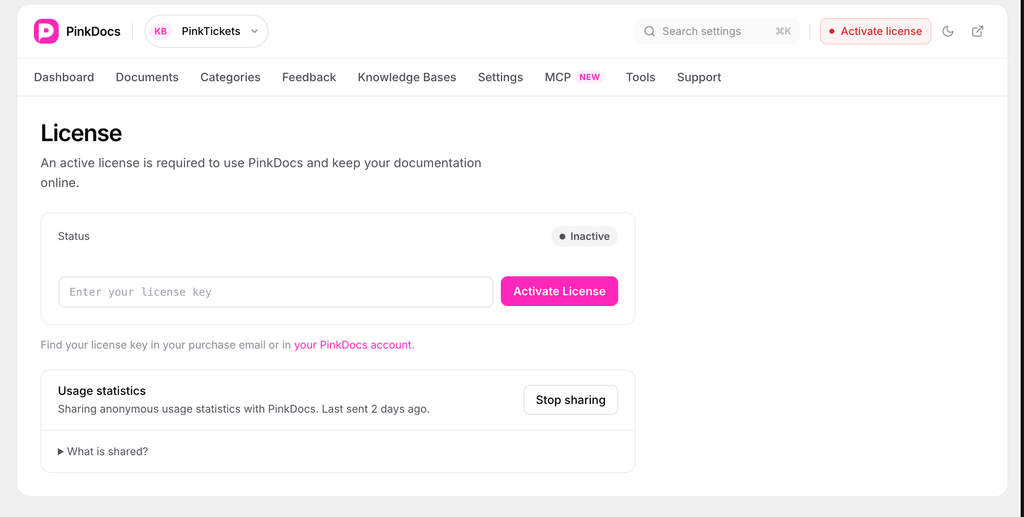
Activate your licence
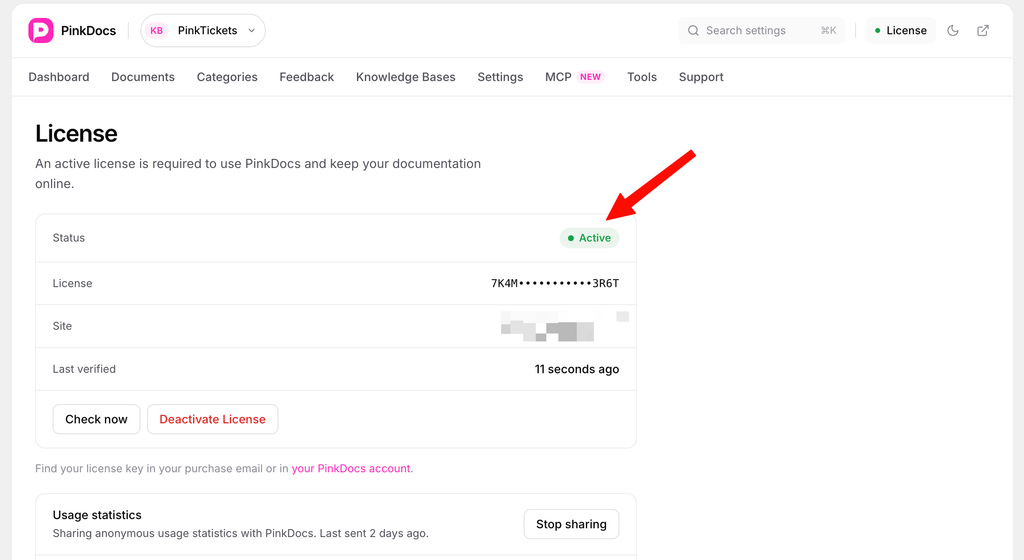
Go to PinkDocs → License, paste your licence key and save. Activating your licence unlocks all features and lets you receive plugin updates.
Your help centre is available at yoursite.com/docs/. It stays empty until you publish your first doc.
Manage your subscription
You manage your PinkDocs subscription from the same customer dashboard.
Sign in to your dashboard
Go to pinkdocs.com/account, enter your email address and click the sign-in link in the email from Dodo Payments.
Open your subscription
Find your PinkDocs subscription in the dashboard.
Make your changes
From here you can update your payment method, view and download invoices, and change or cancel your subscription.
Updating PinkDocs
When a new version is available, you’ll see an update notice on the Plugins screen. Click Update now. Your knowledge bases, docs and settings are kept during updates.
You can also download the latest plugin file from your customer dashboard at any time and upload it to update manually.
Common questions
Go to pinkdocs.com/account, enter your email address and sign in with the link Dodo Payments sends you. Your licence key and the latest plugin file are always in your customer dashboard.
Contact our support team with your old and new email addresses, and we'll help you get access.
No. You sign in with your email address and the link Dodo Payments emails you each time.
That depends on your plan. Check the number of sites included with your licence in your customer dashboard.